
Photography Upload Guide
This page is prepared to help your team complete the property-side image upload for your brand website gallery.
Use the recommendations below to guide hero image, carousel, and gallery placement decisions. Then use the image metadata section to copy the prepared fields into MDAC.
For Marriott properties, this upload process takes place through the Marriott Digital Asset Center, referred to here as MDAC.
How to Use This Page
Use this page in two passes:
1. Review the hero and carousel recommendations.
2. Work through the Image Metadata section one image at a time inside MDAC.
For each image, match the asset by its ORIGINAL FILENAME, then copy or reference the prepared fields beneath that image.
Fields that say “Search in DAC for:” are dropdown/search selections inside MDAC. Fields that say “Property to verify” or “Property to select” require confirmation inside Marriott systems.
Before submitting the assets for approval, please reach out if anything does not appear to match.
Recommended Gallery Strategy
This delivery gives Courtyard Pigeon Forge a strong full-property refresh with a clear arrival story, renovated lobby and dining spaces, distinctive recreation amenities, guest rooms and suites, balcony views, and flexible meeting spaces.
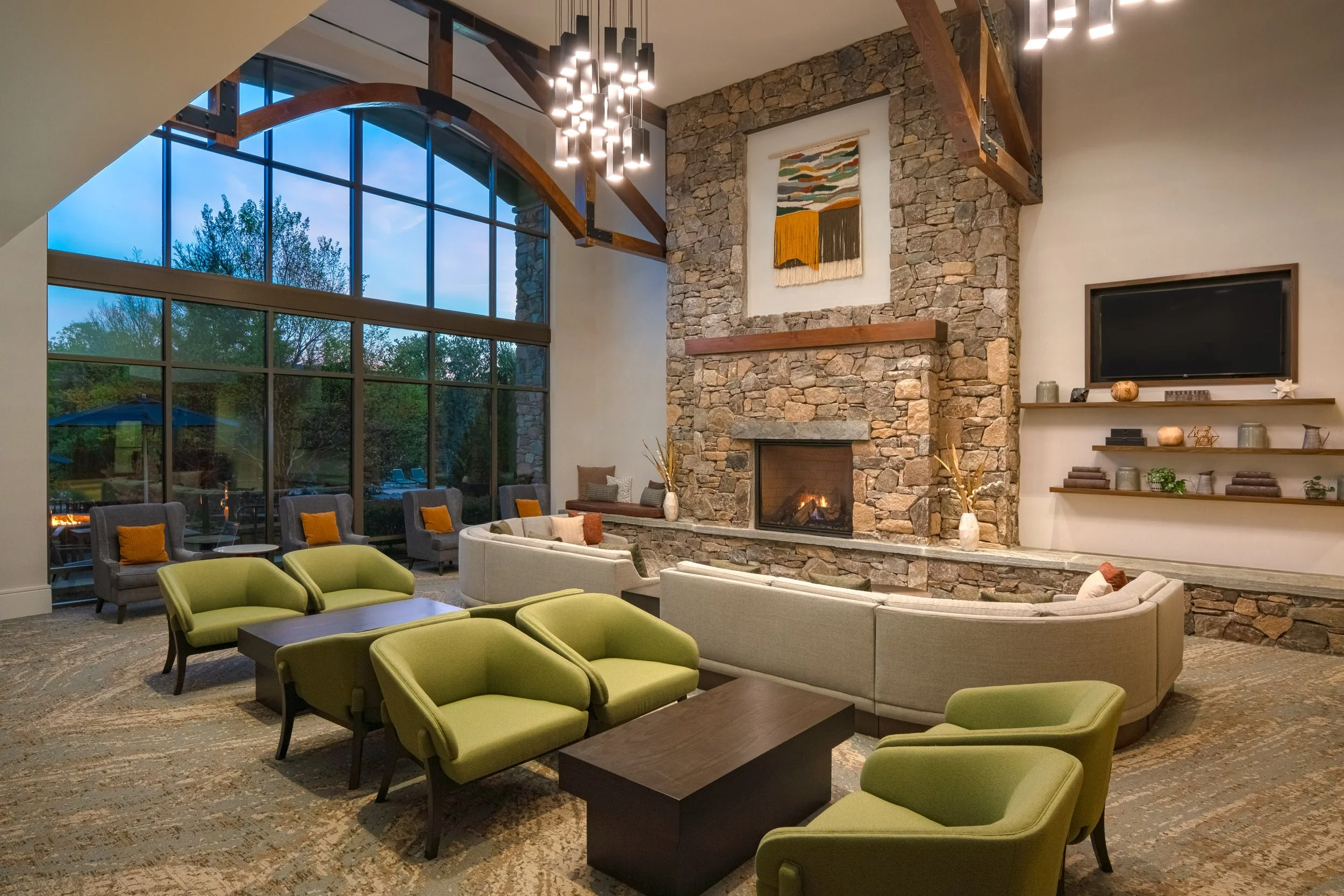
For the primary booking path, lead with the exterior dusk image, then quickly show the great room, a strong two-bed guest room, a signature recreation image, and an evening atmosphere image. This sequence helps guests understand the property experience before moving into supporting amenities, room pools, and event spaces.
Competitive Search Carousel
Use this 10-image sequence for the most competitive first impression on Marriott.com and OTA search experiences. It balances arrival, public space, room confidence, recreation value, atmosphere, suite space, dining, and events without repeating similar images too early.
Hotel Website Overview Carousel
Use this expanded sequence for the hotel website overview carousel. It keeps the strongest sales story up front while adding more context for dining, recreation, suites, meetings, and arrival.
Page-Specific Hero Images
Overview Page Hero
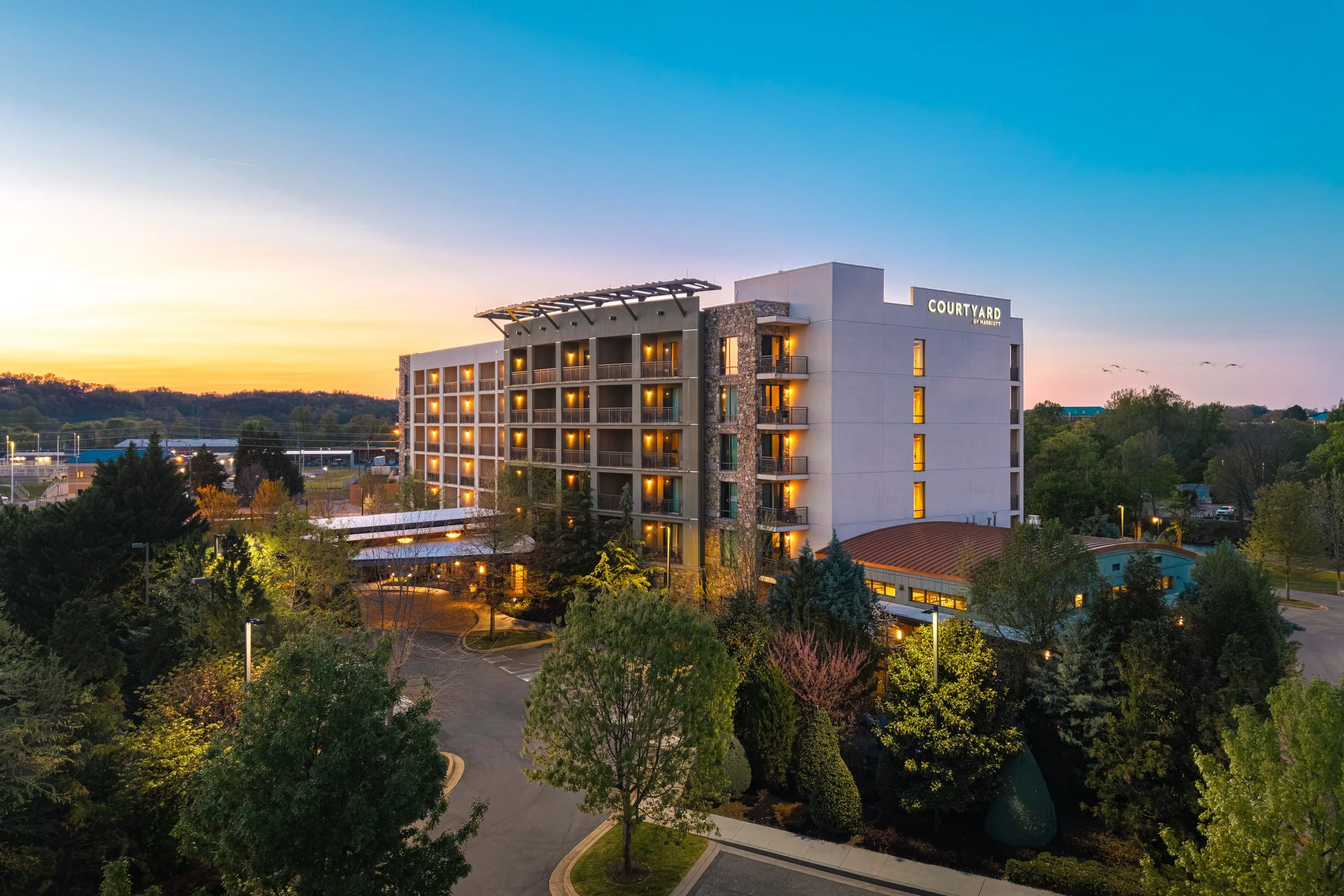
4901_TYSCP_Courtyard_exteriordusk.jpg
Use this image to lead the overall property story with the strongest exterior arrival image and evening atmosphere.
Rooms Page Hero
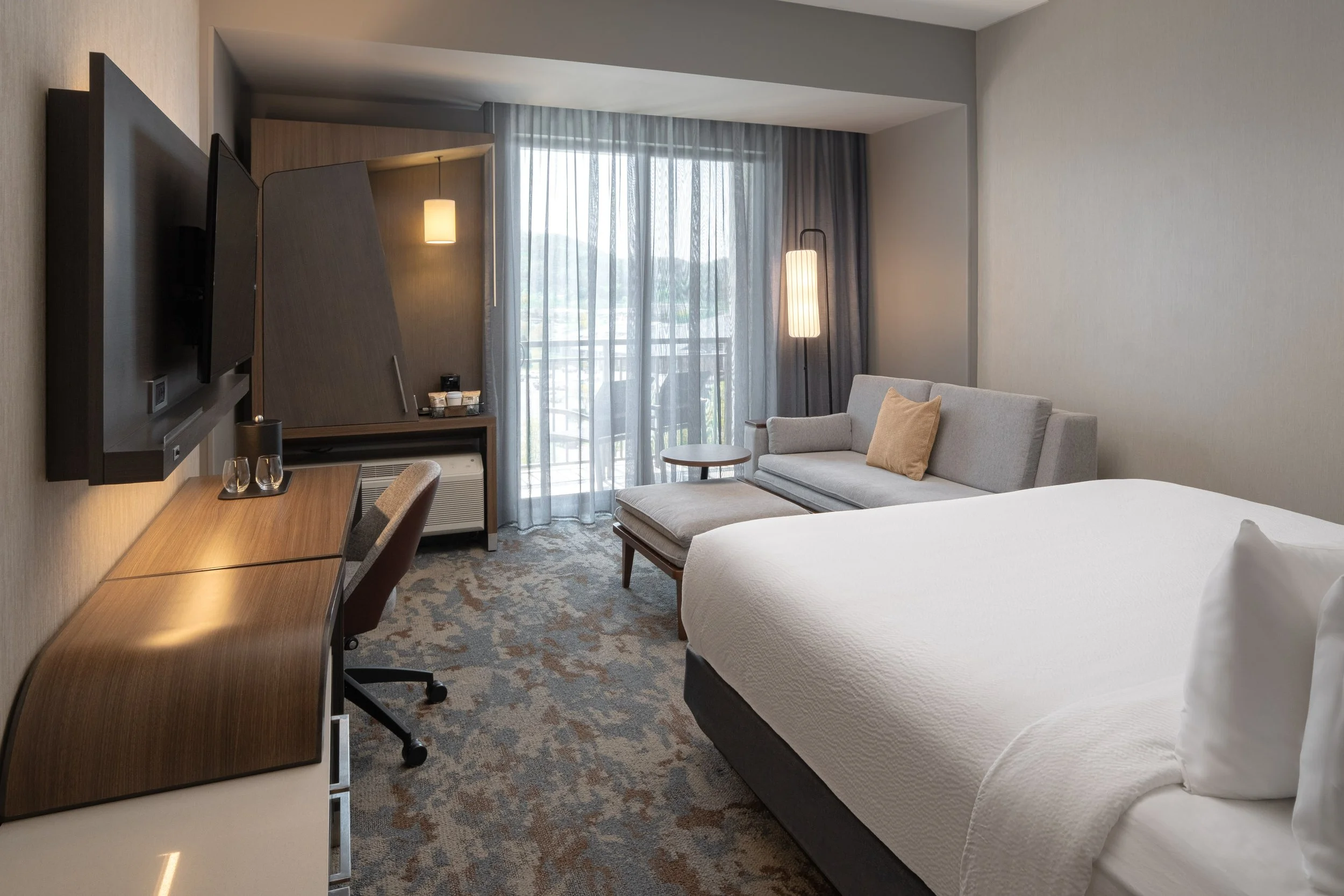
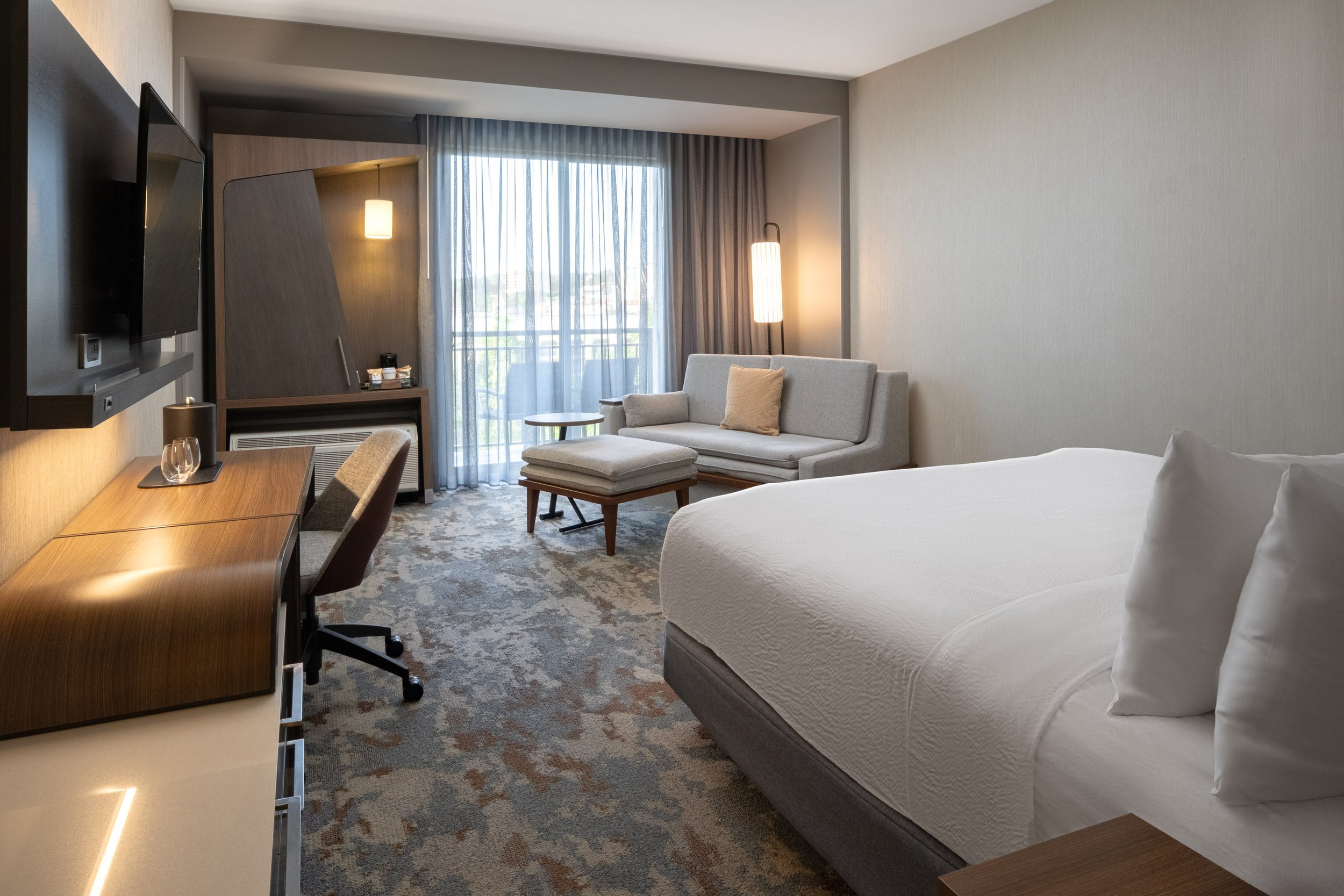
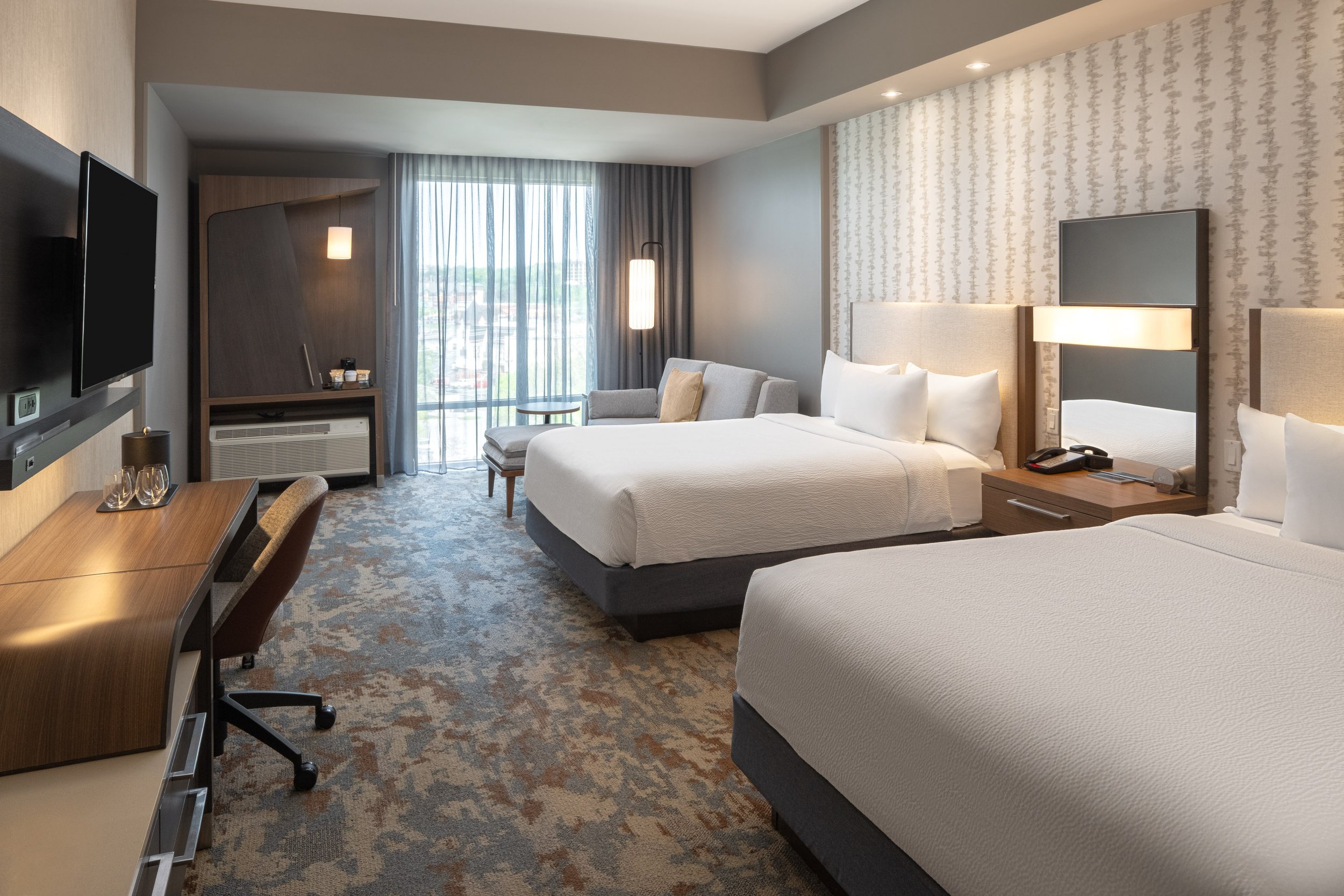
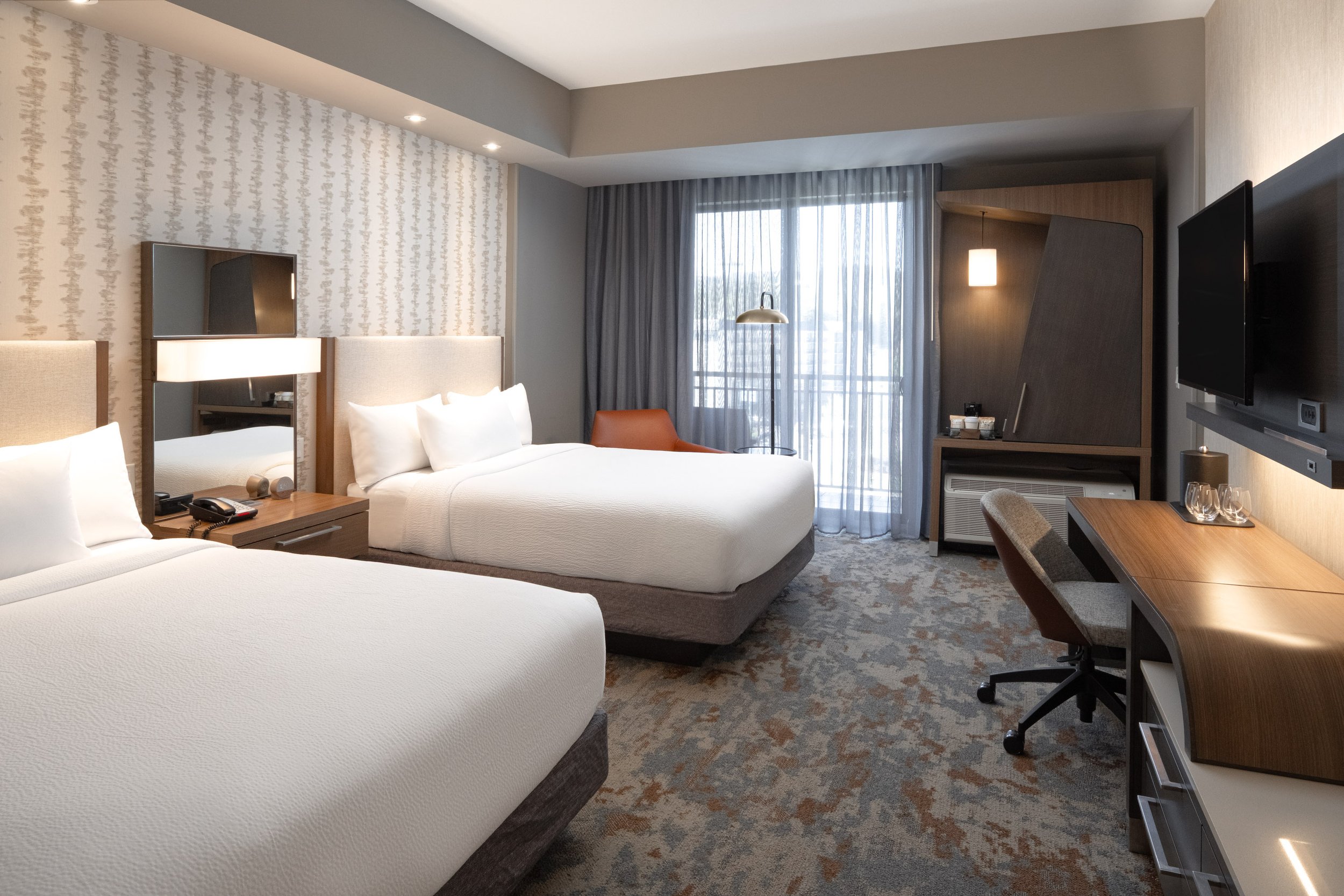
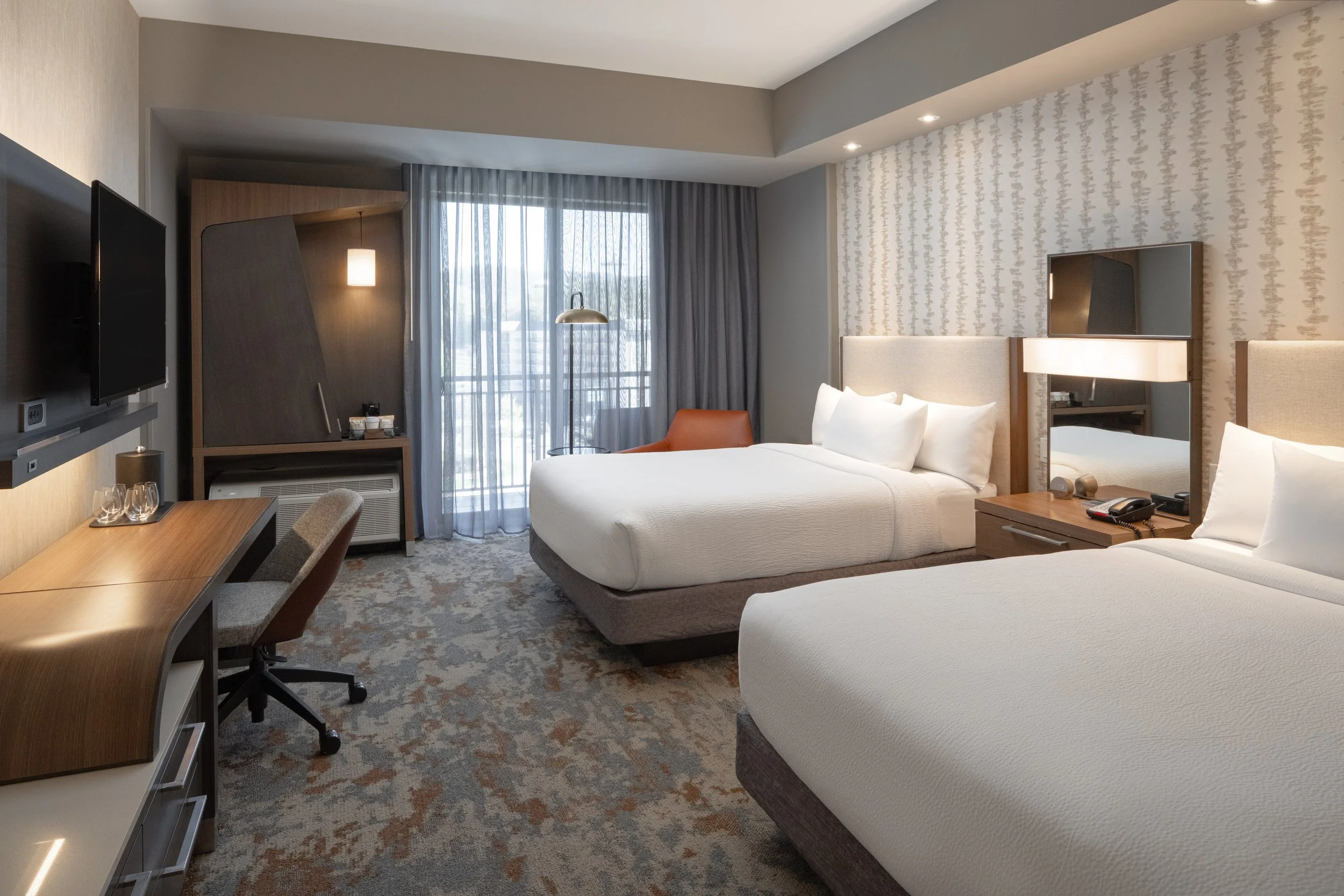
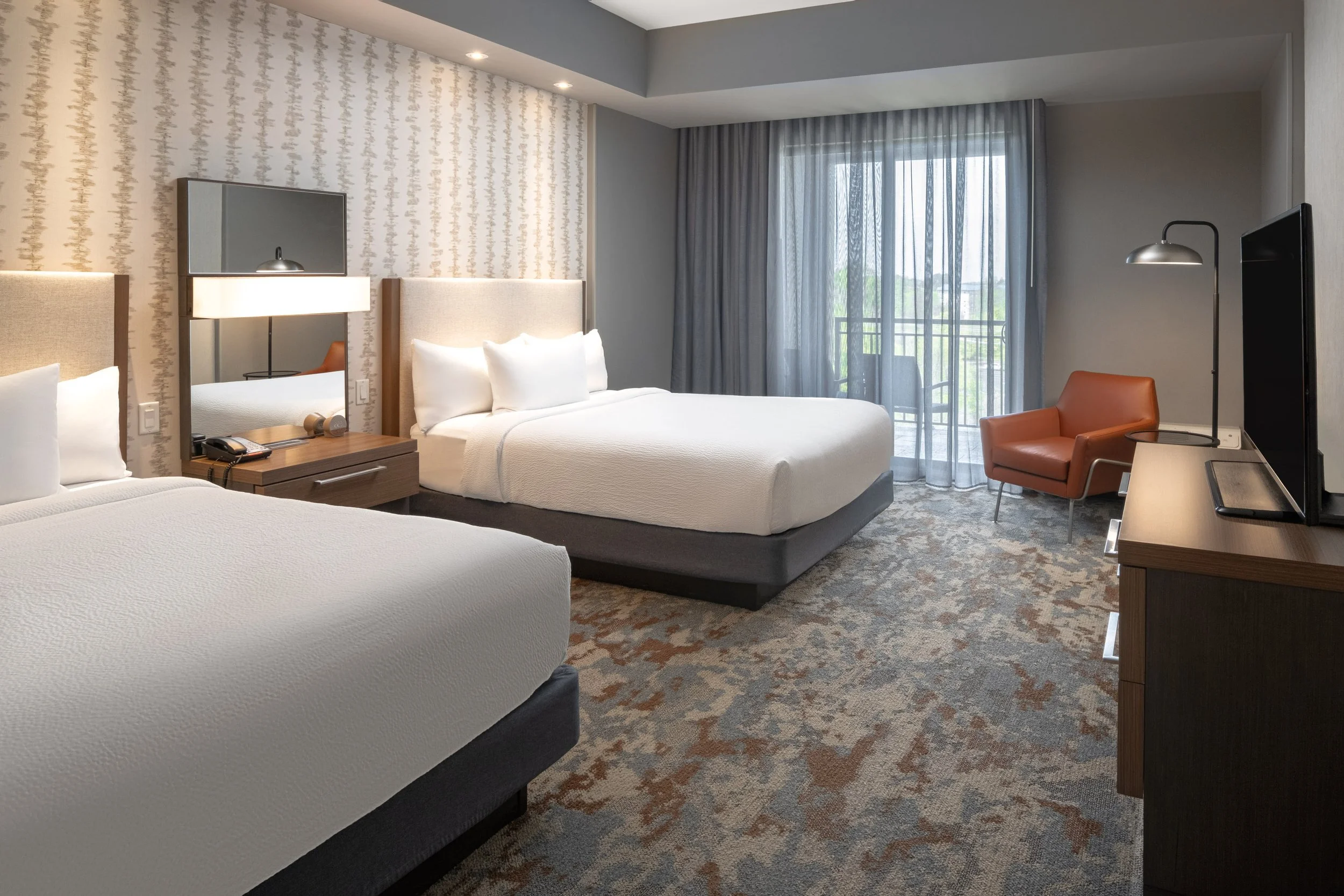
4929_TYSCP_Courtyard_qnqn_window.jpg
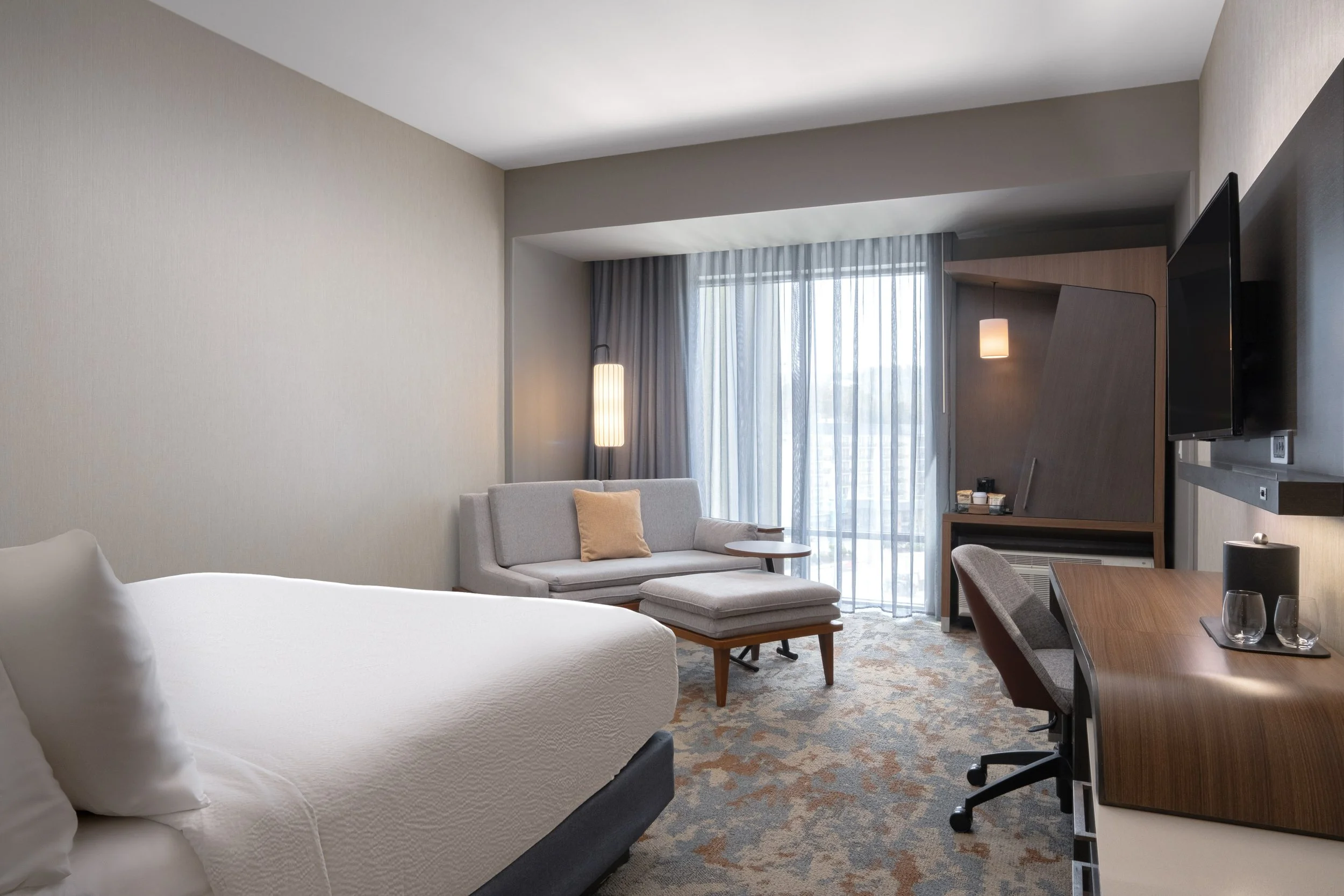
Use this image to lead the rooms page with a strong two-bed guest room angle showing beds, desk, seating, and natural light.
Dining Page Hero
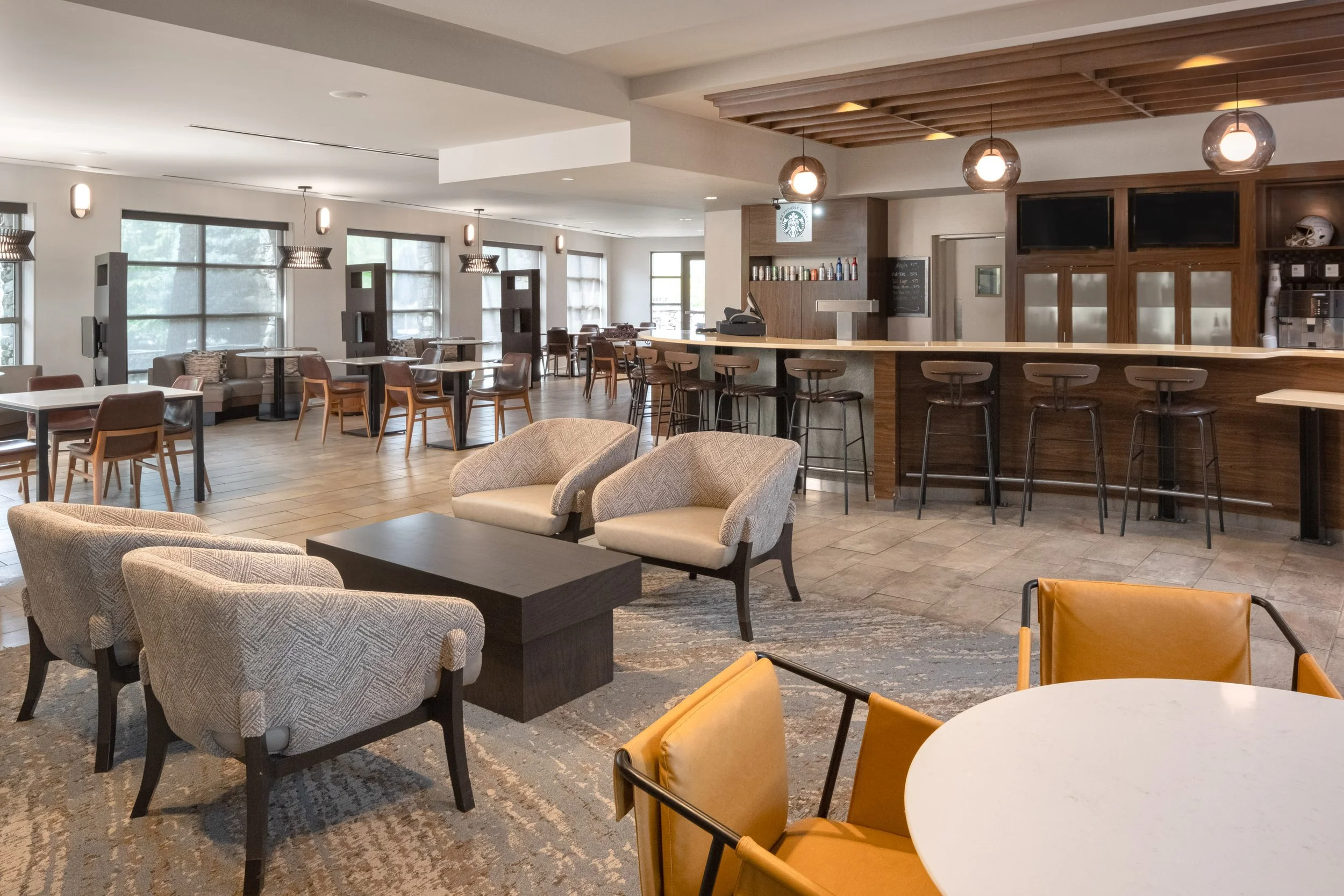
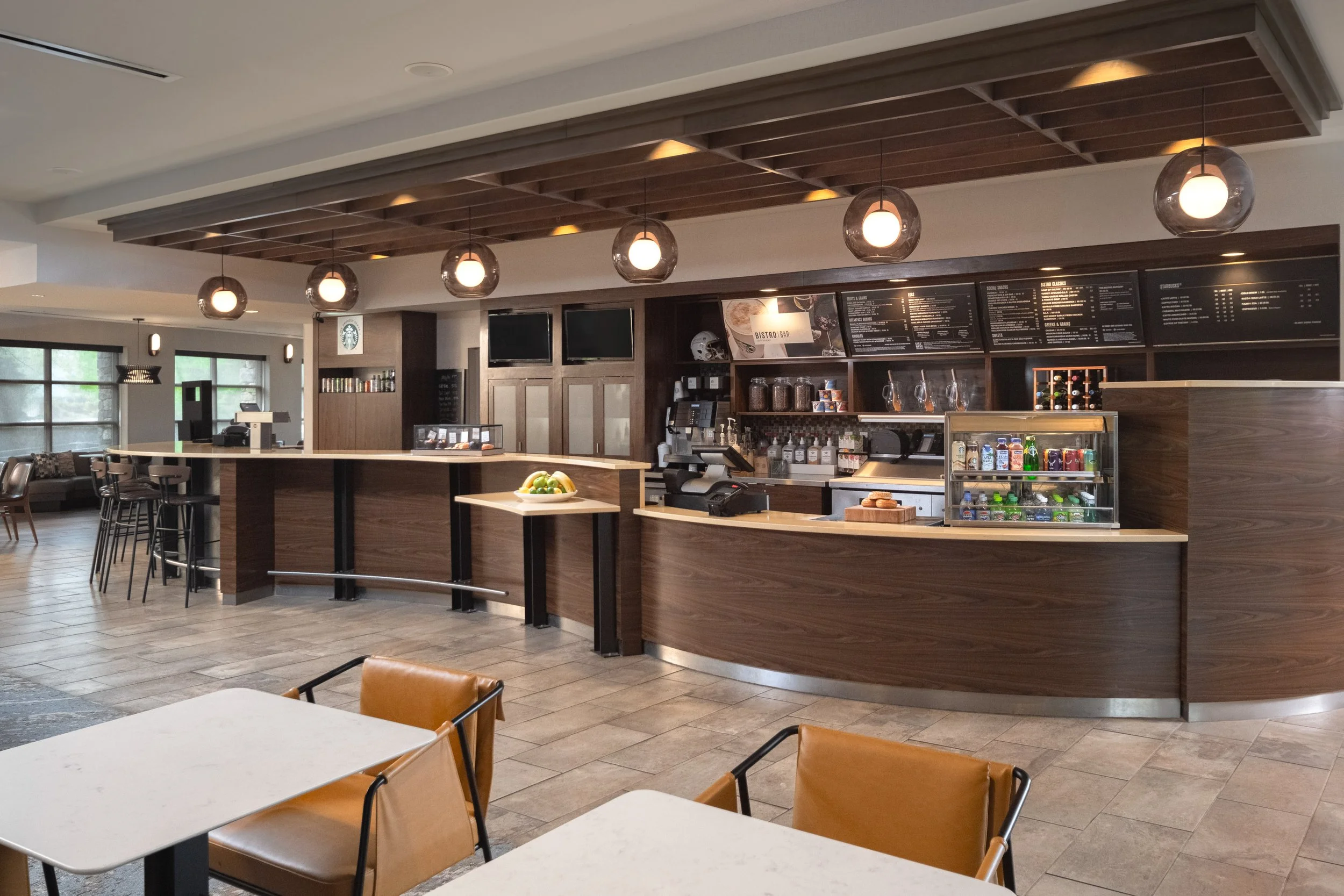
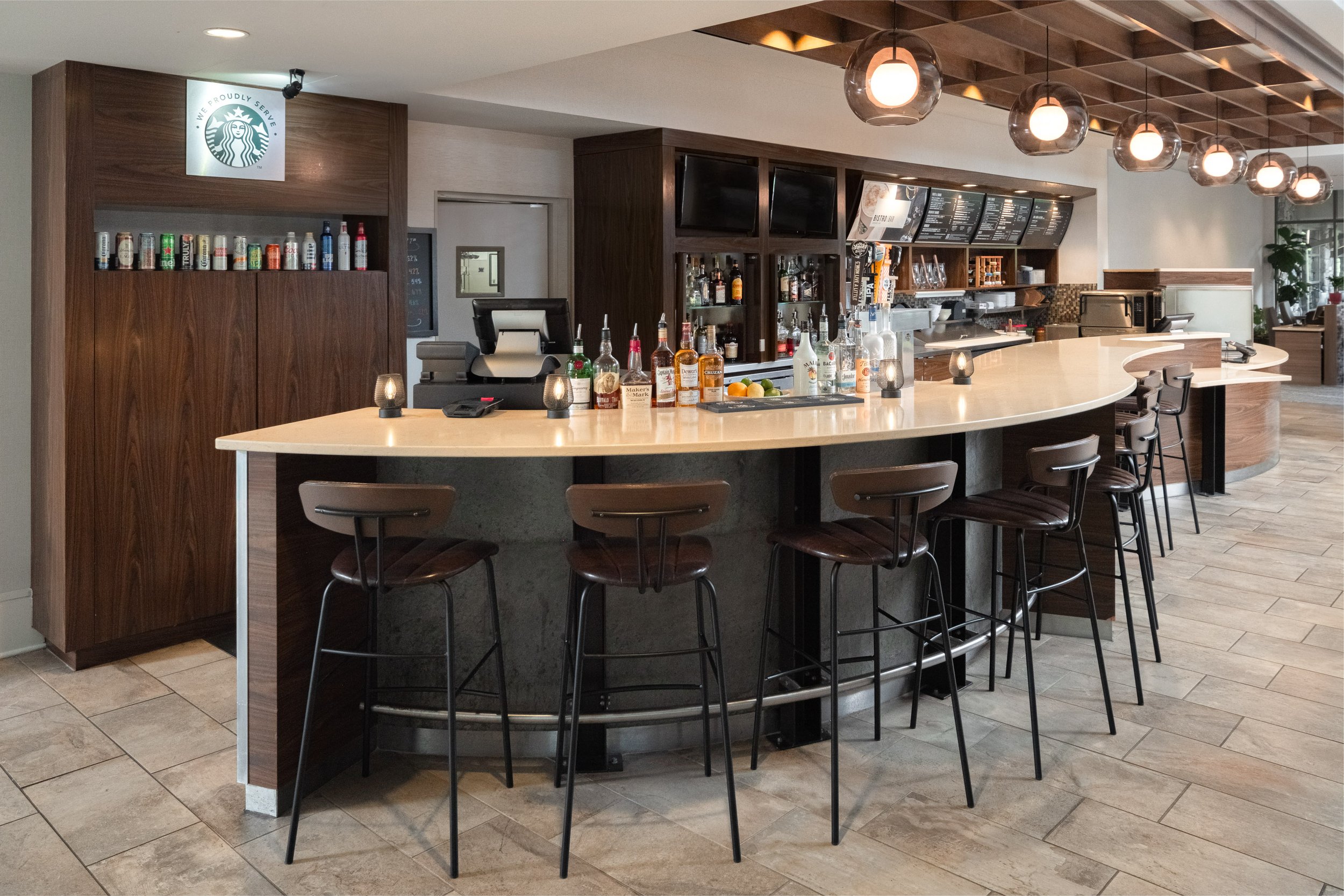
4909_TYSCP_Courtyard_bar.jpg
Use this image to introduce the Bistro bar and dining area with a warmer, more social guest-facing view.
Experiences / Amenities Page Hero
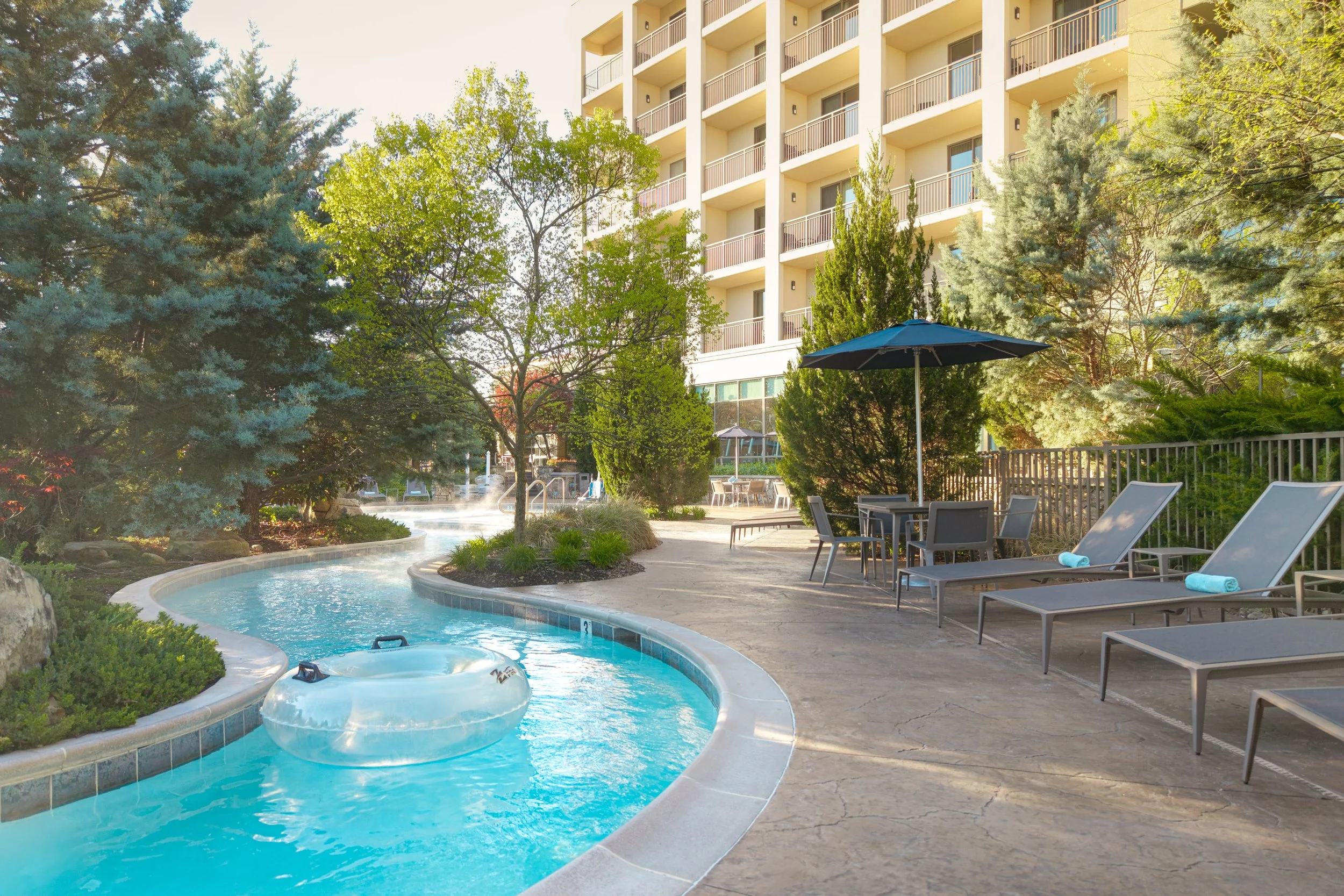
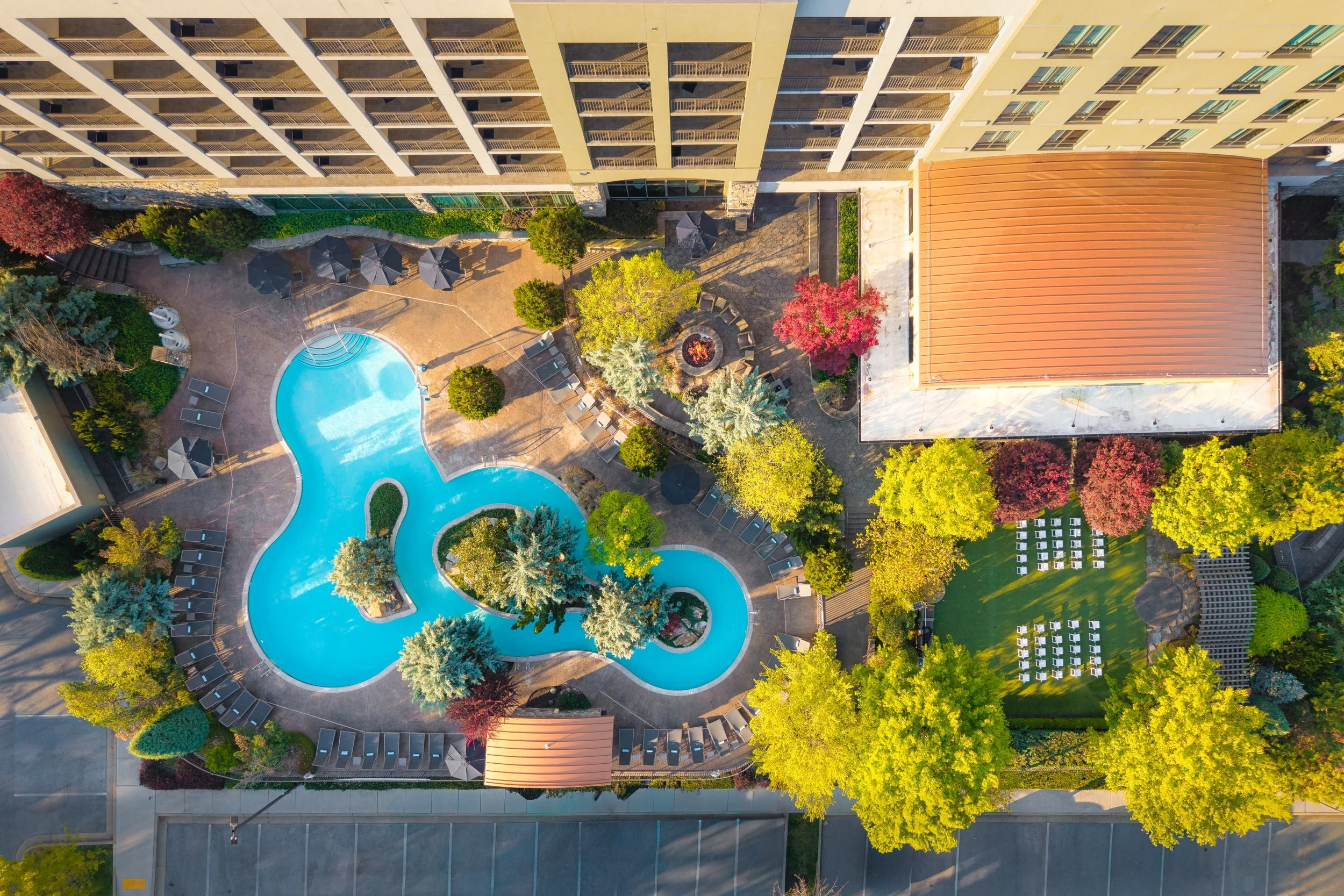
4916_TYSCP_Courtyard_pool_lazyriver.jpg
Use this image to highlight the property’s recreation story with the outdoor lazy river pool and surrounding seating.
Events Page Hero
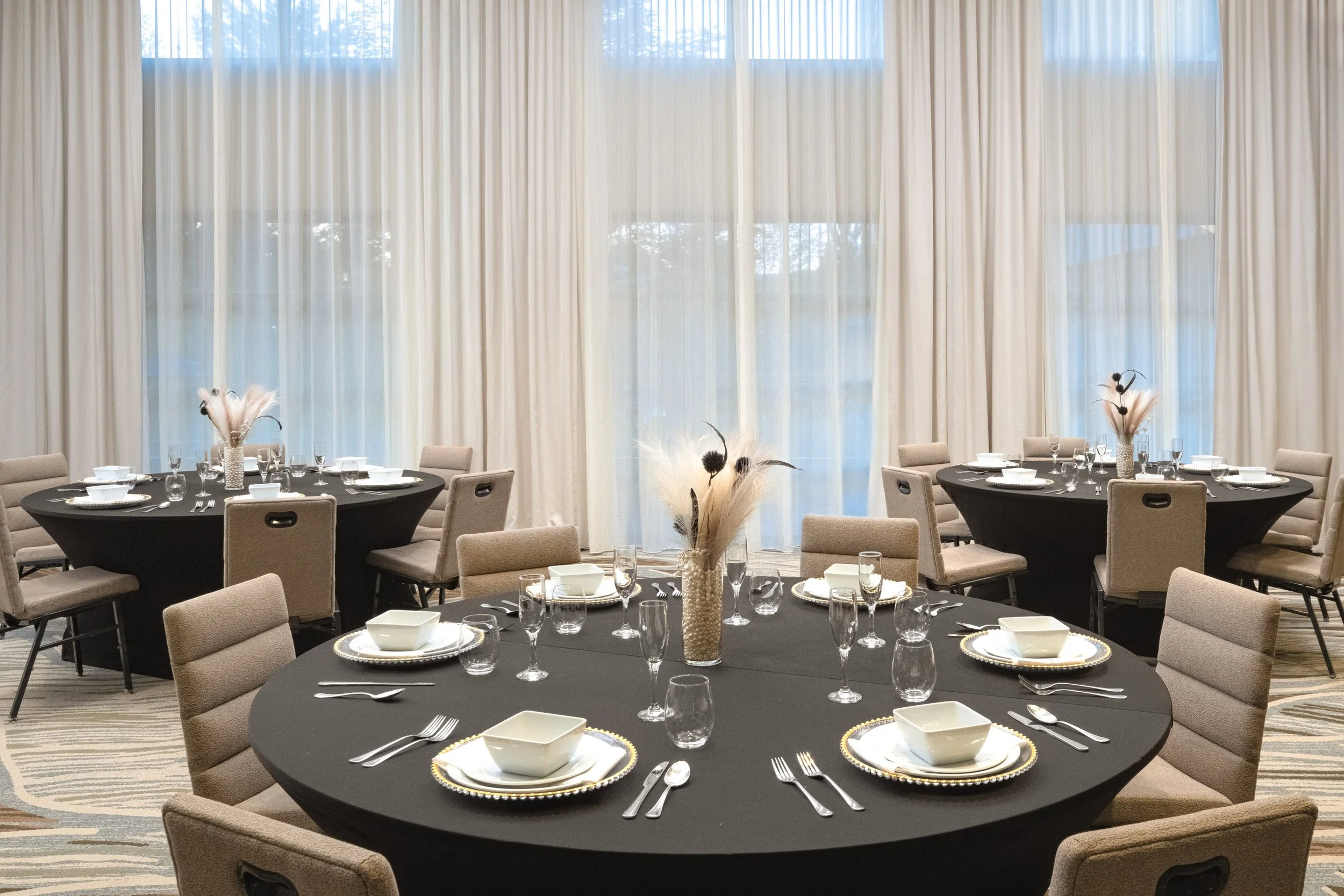
4949_TYSCP_Courtyard_conference_roosevelt_banquet.jpg
Use this image to lead the events page with a finished banquet setup that feels more polished and hospitality-focused.
Room Type Carousel Guidance
Use the room pool guidance below only after confirming the property’s current room setup inside Marriott systems.
Each visual group shows the recommended image order for that room pool. Shared room-support images appear in their own group at the end and should only be assigned where the property confirms they apply.
Shared Room Support Images
Use these shared room-support images only for the room pools where the property confirms they apply.
Gallery Category Placement Notes
Exterior:
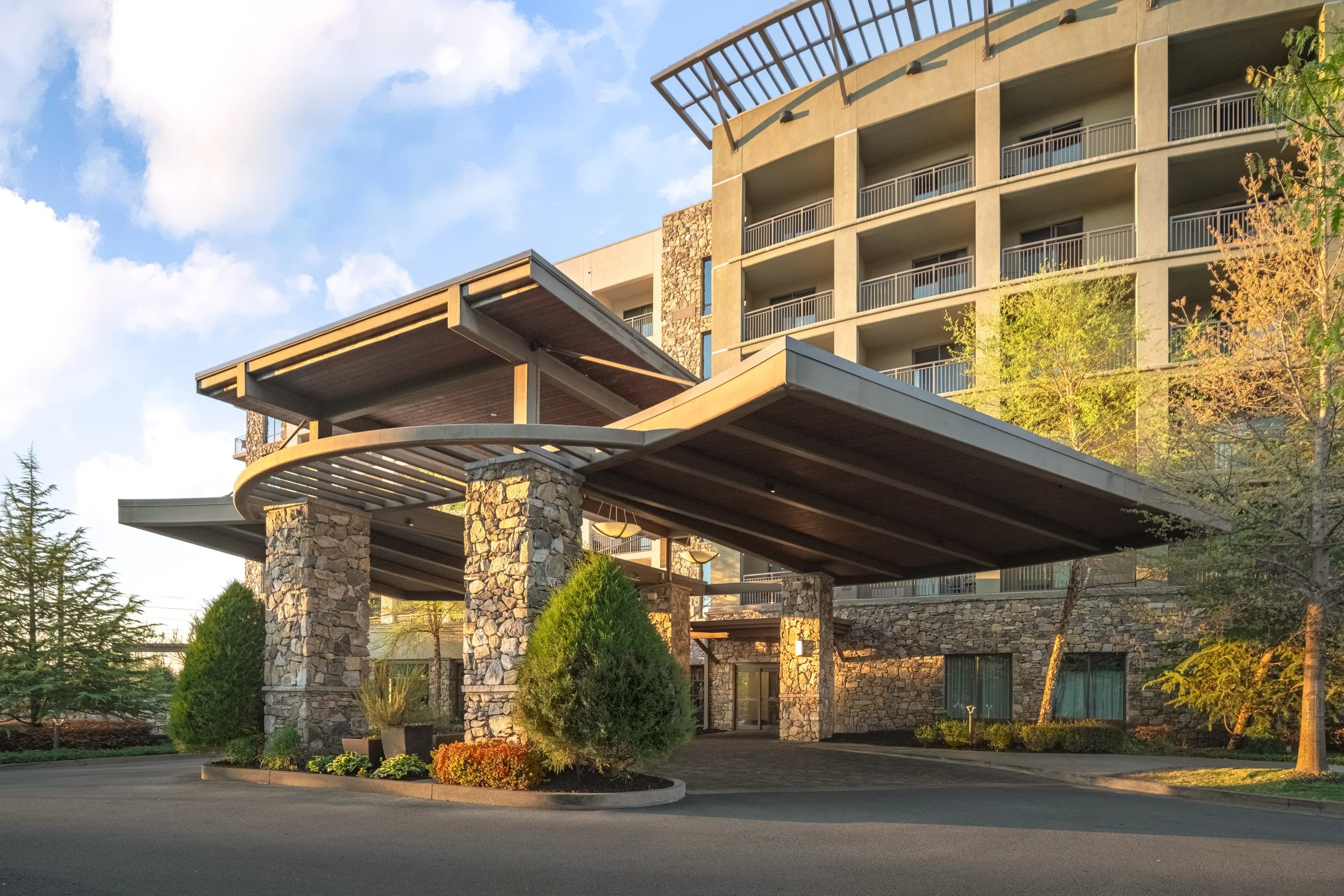
4901, 4902
Lobby / Public Spaces:
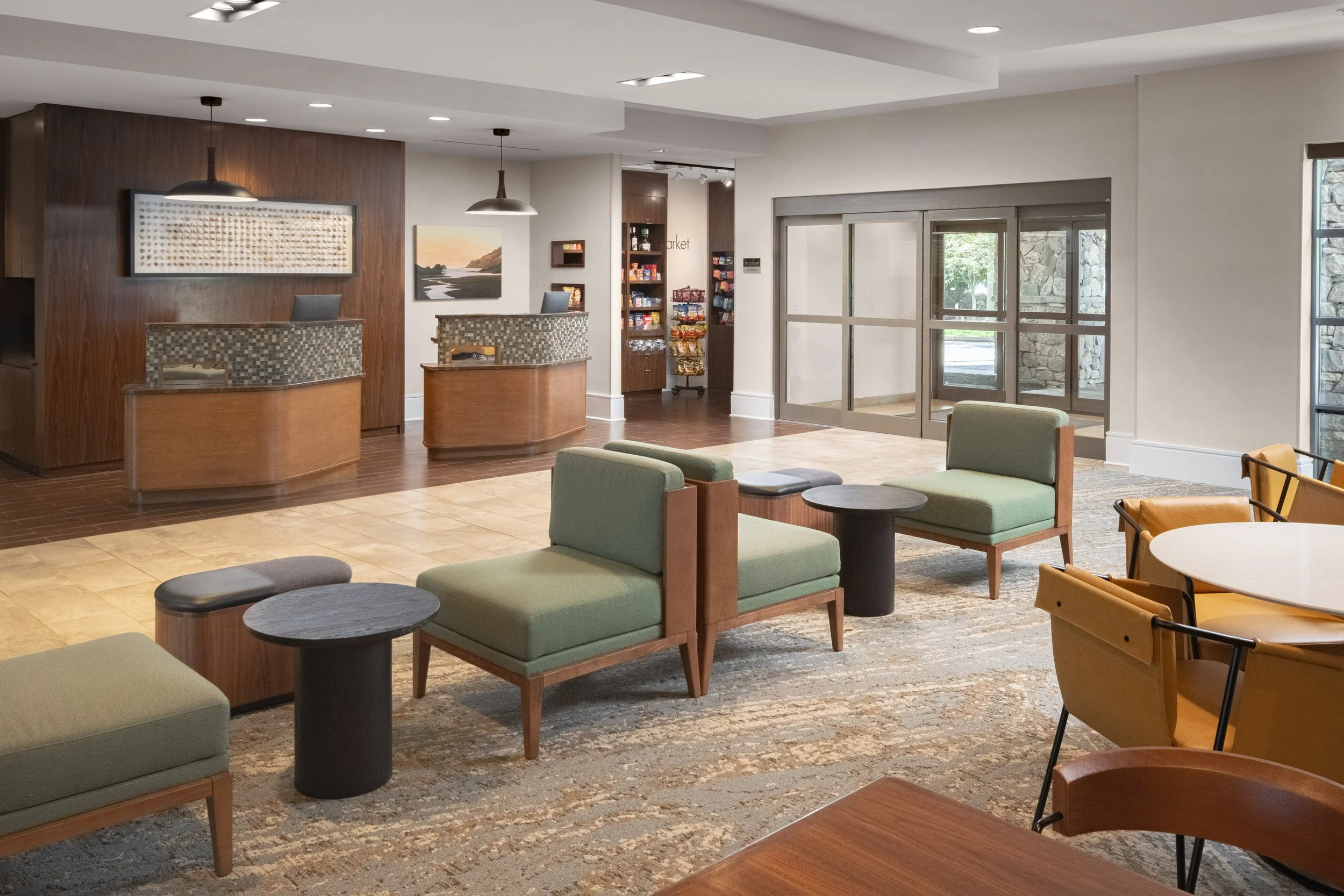
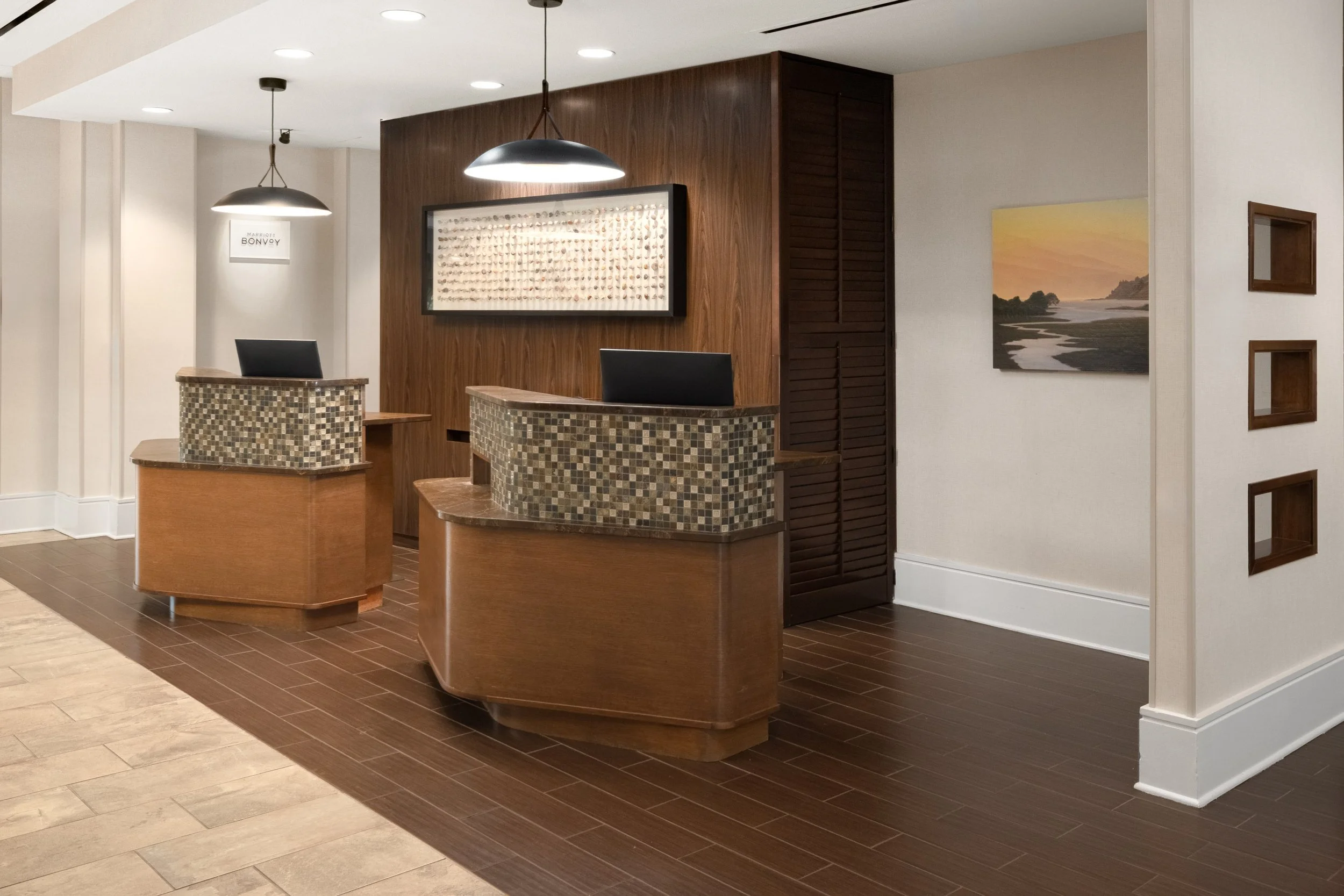
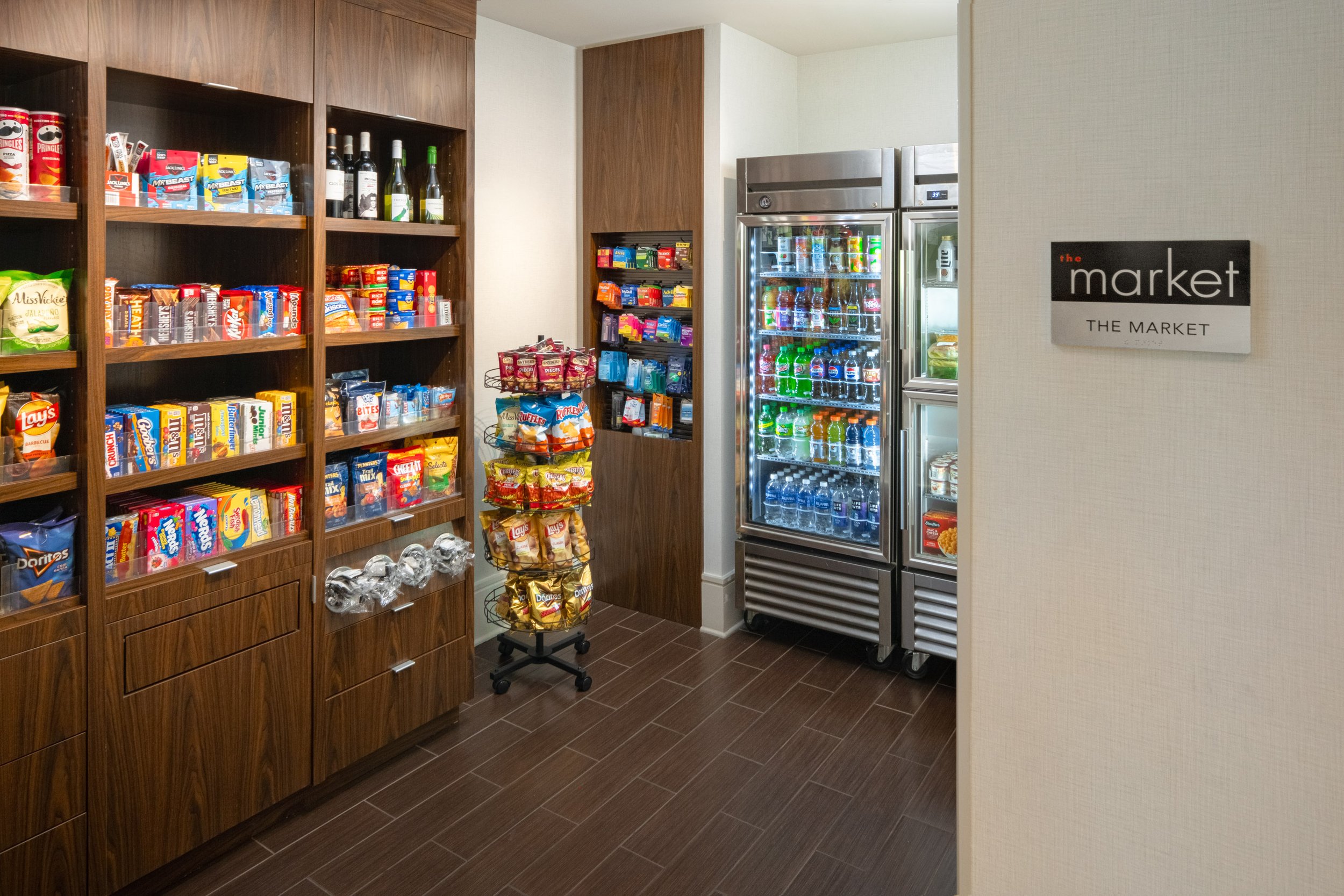
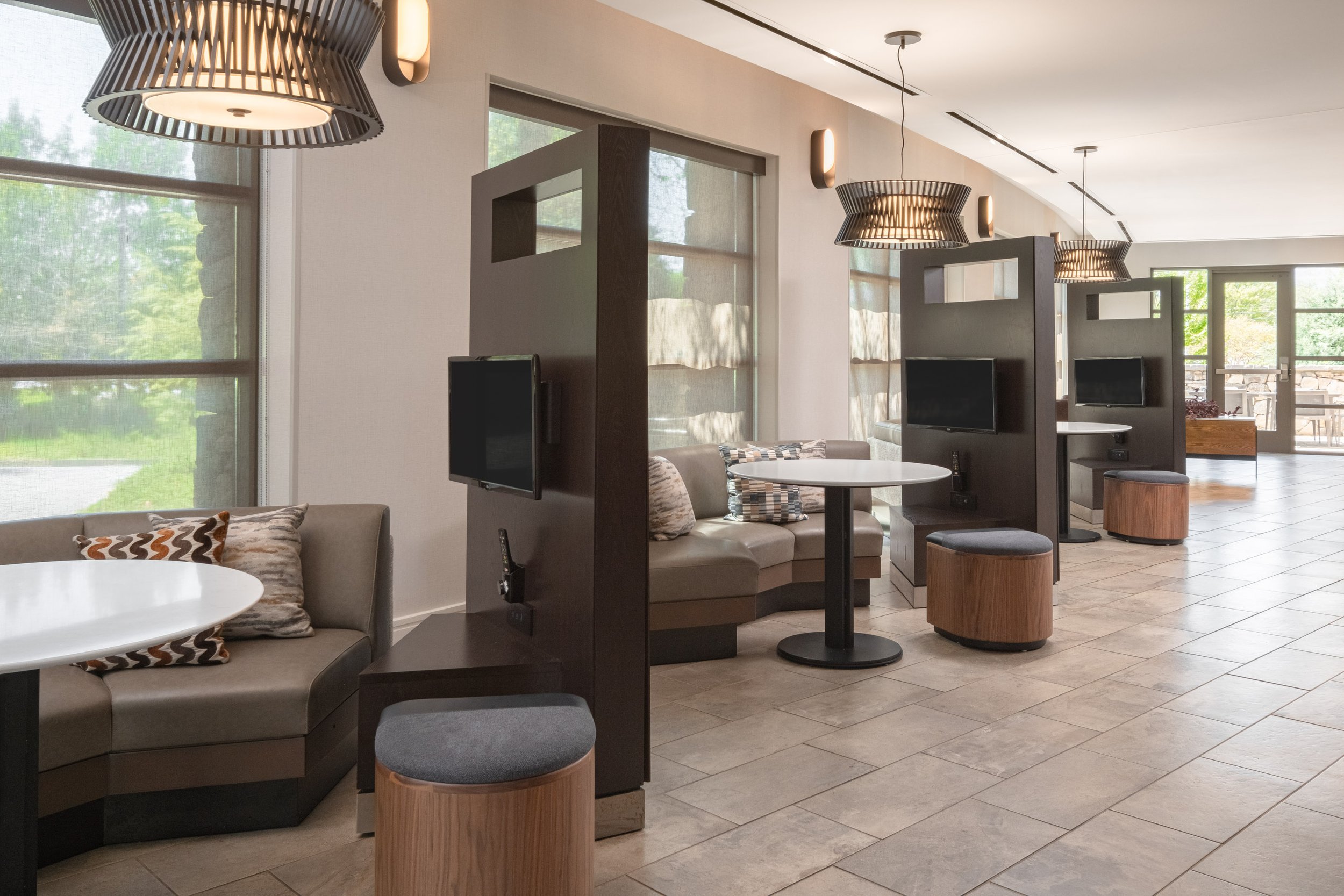
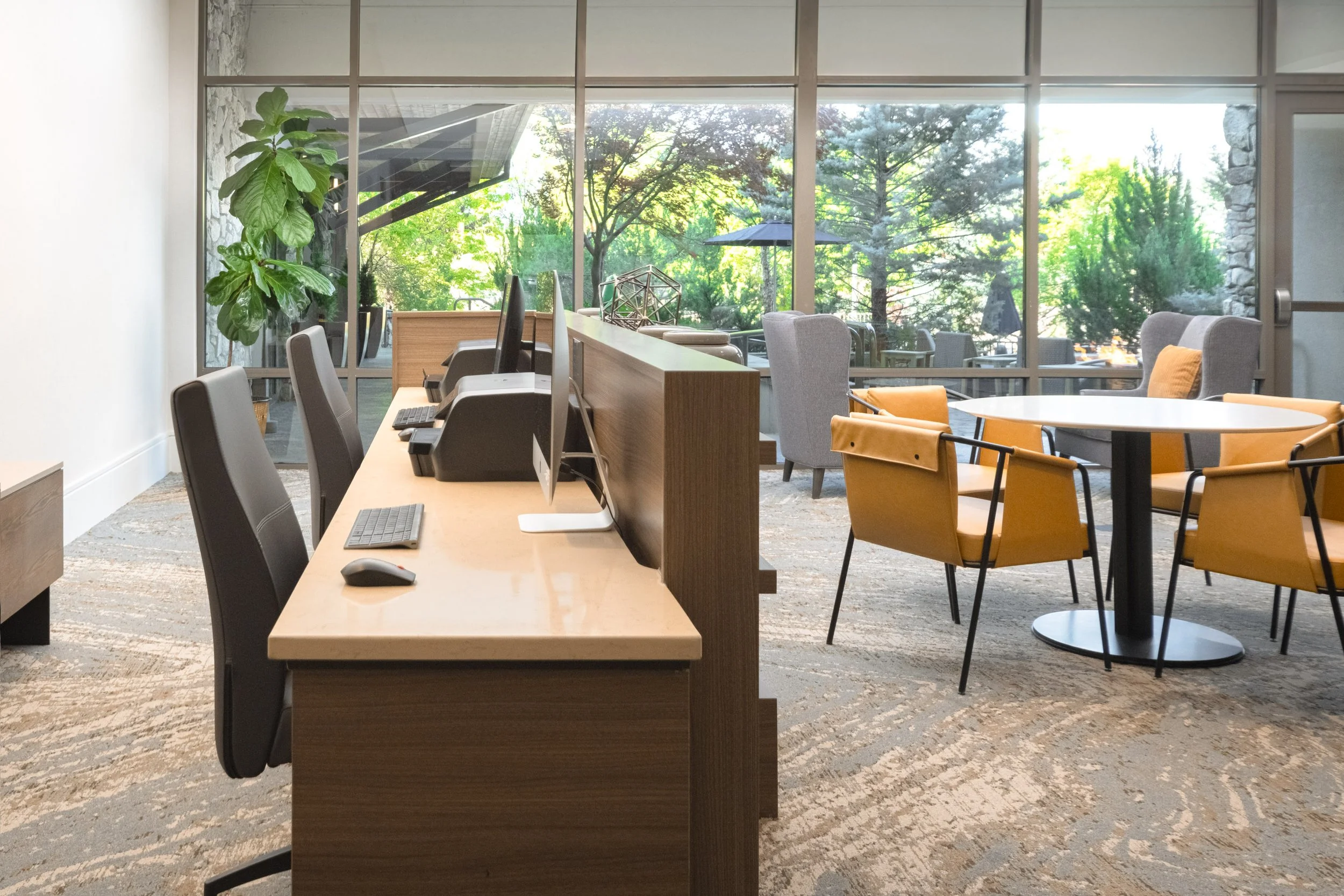
4903, 4905, 4907, 4910, 4911
Dining:
4904, 4906, 4908, 4909
Recreation & Fitness:
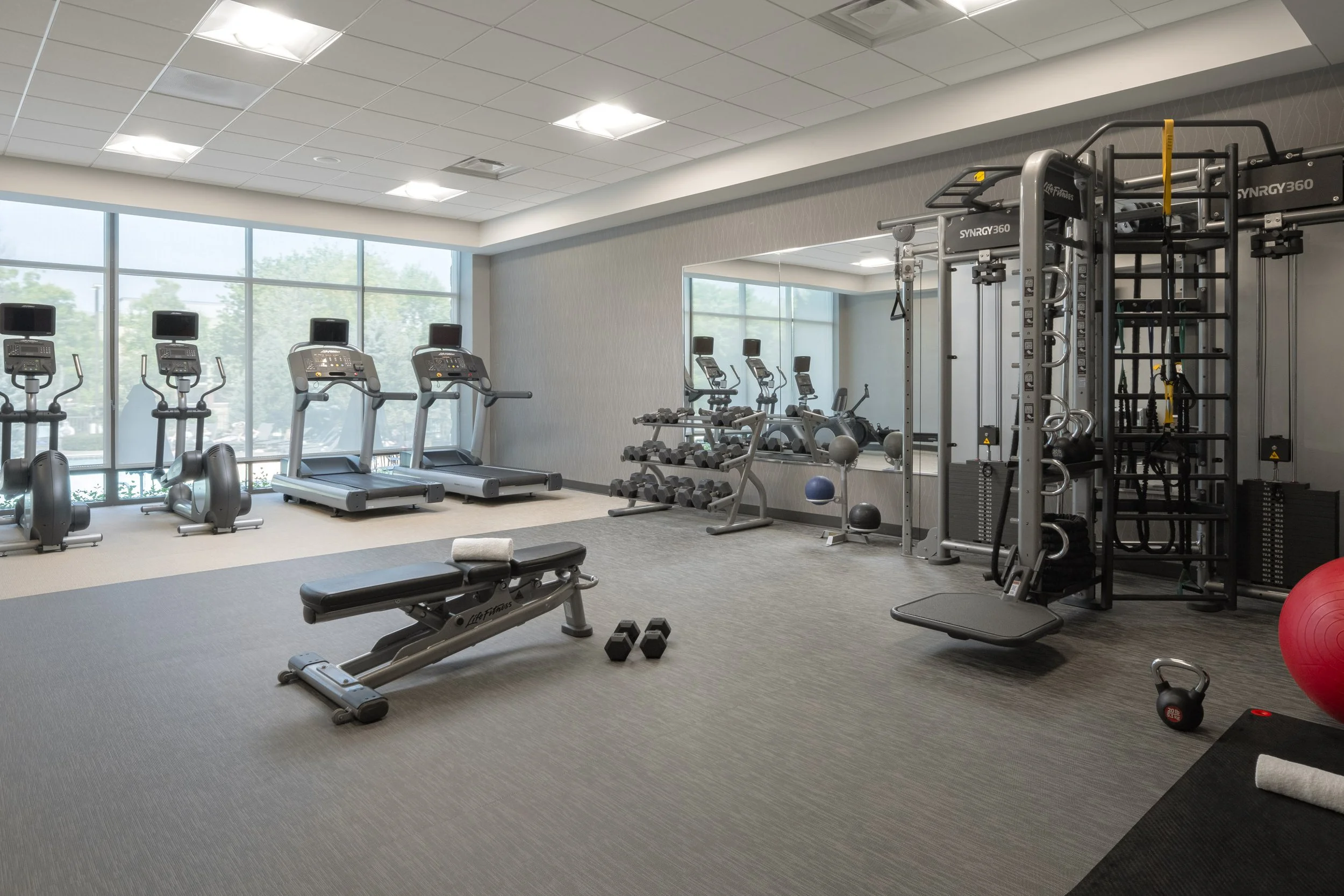
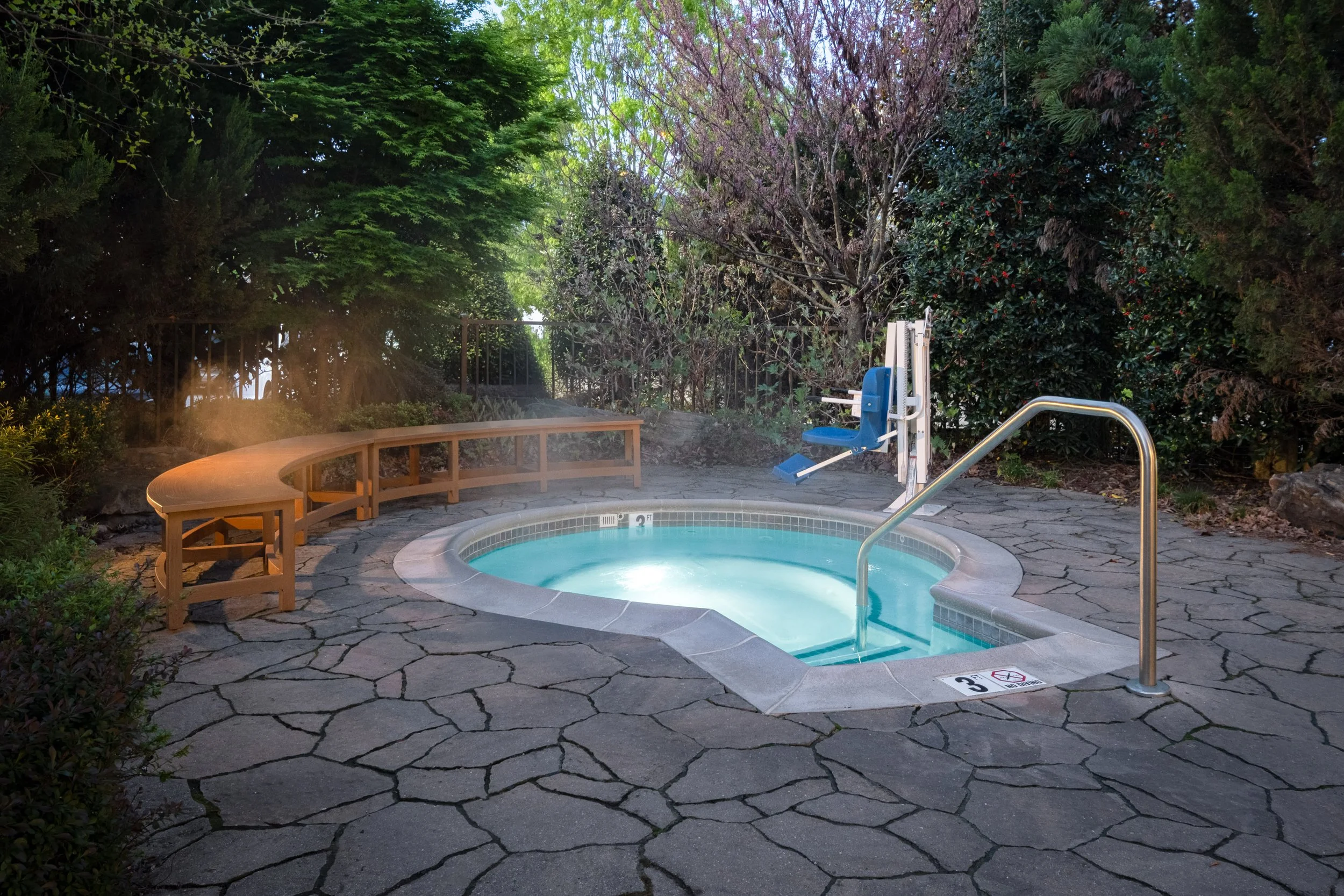
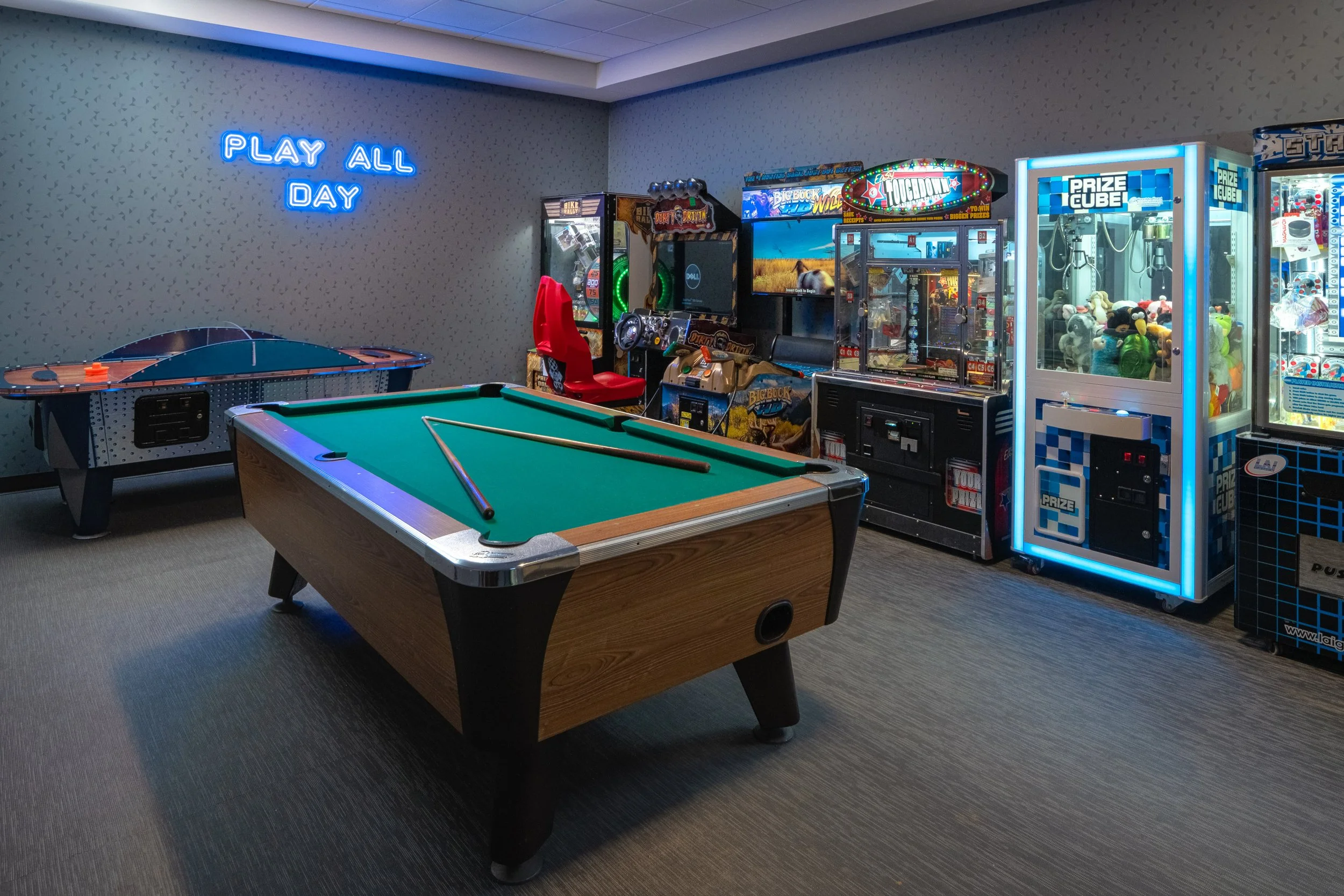
4913, 4914, 4915, 4916, 4917, 4918, 4946
Features / Outdoor Guest Areas:
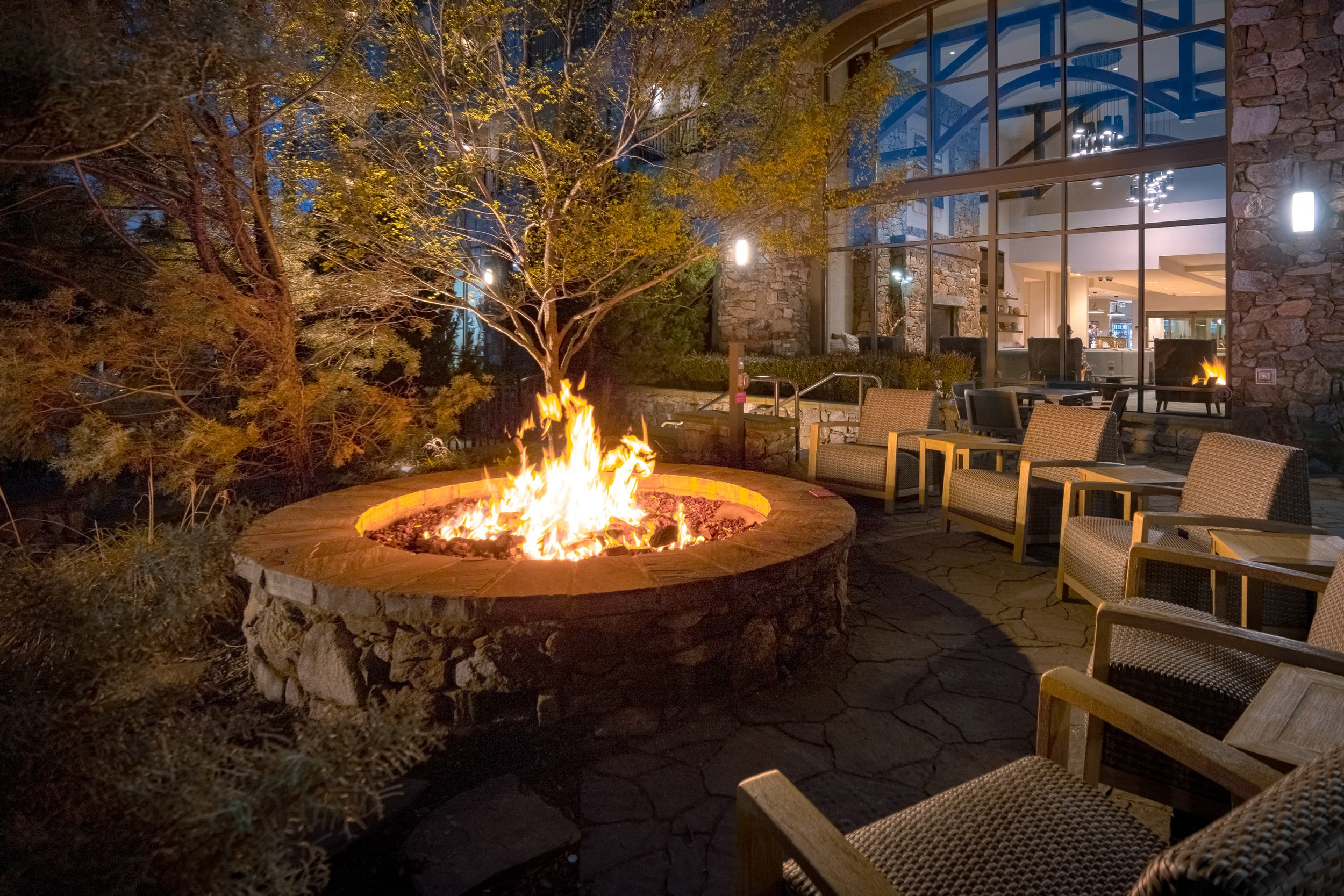
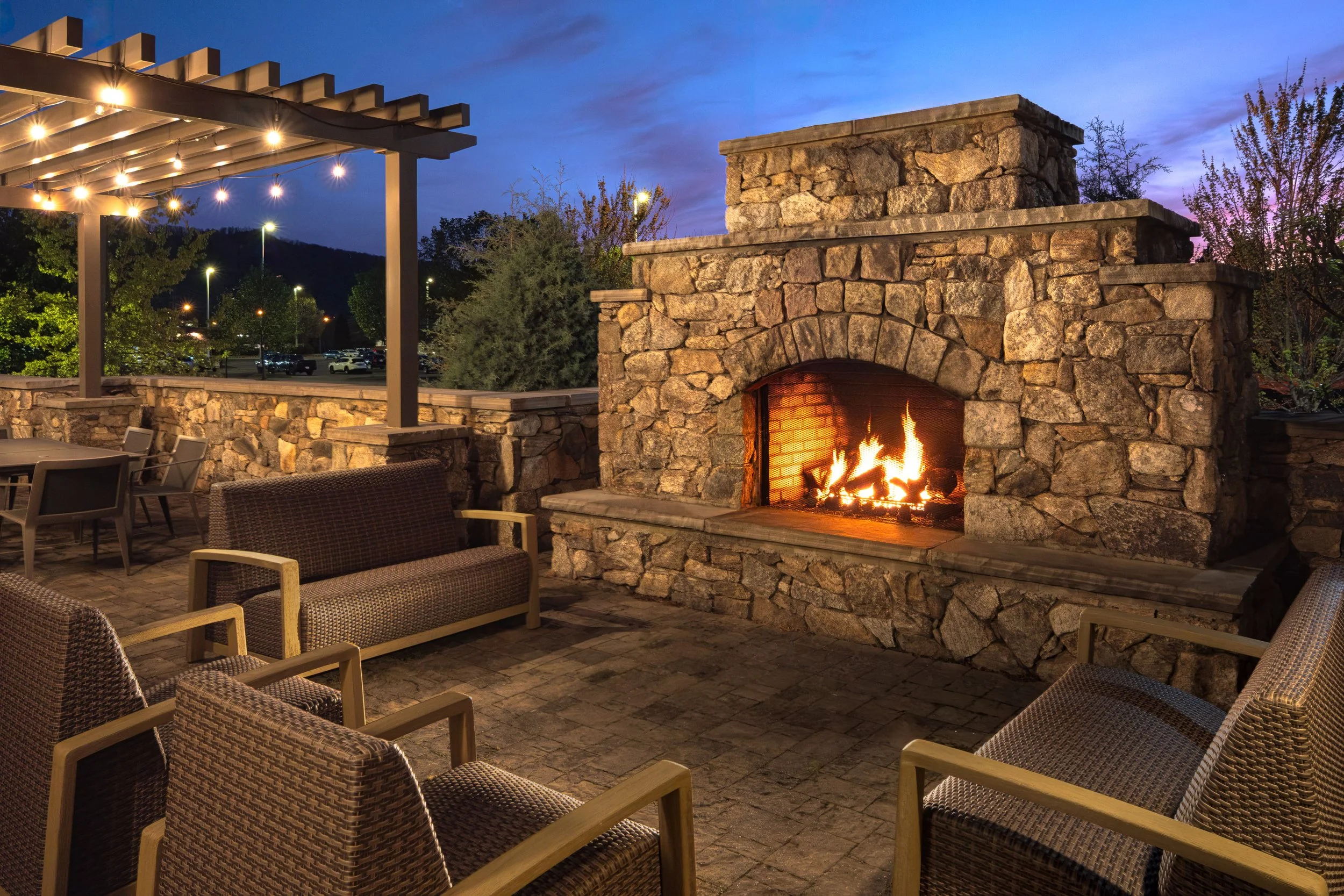
4919, 4920
Guest Rooms:
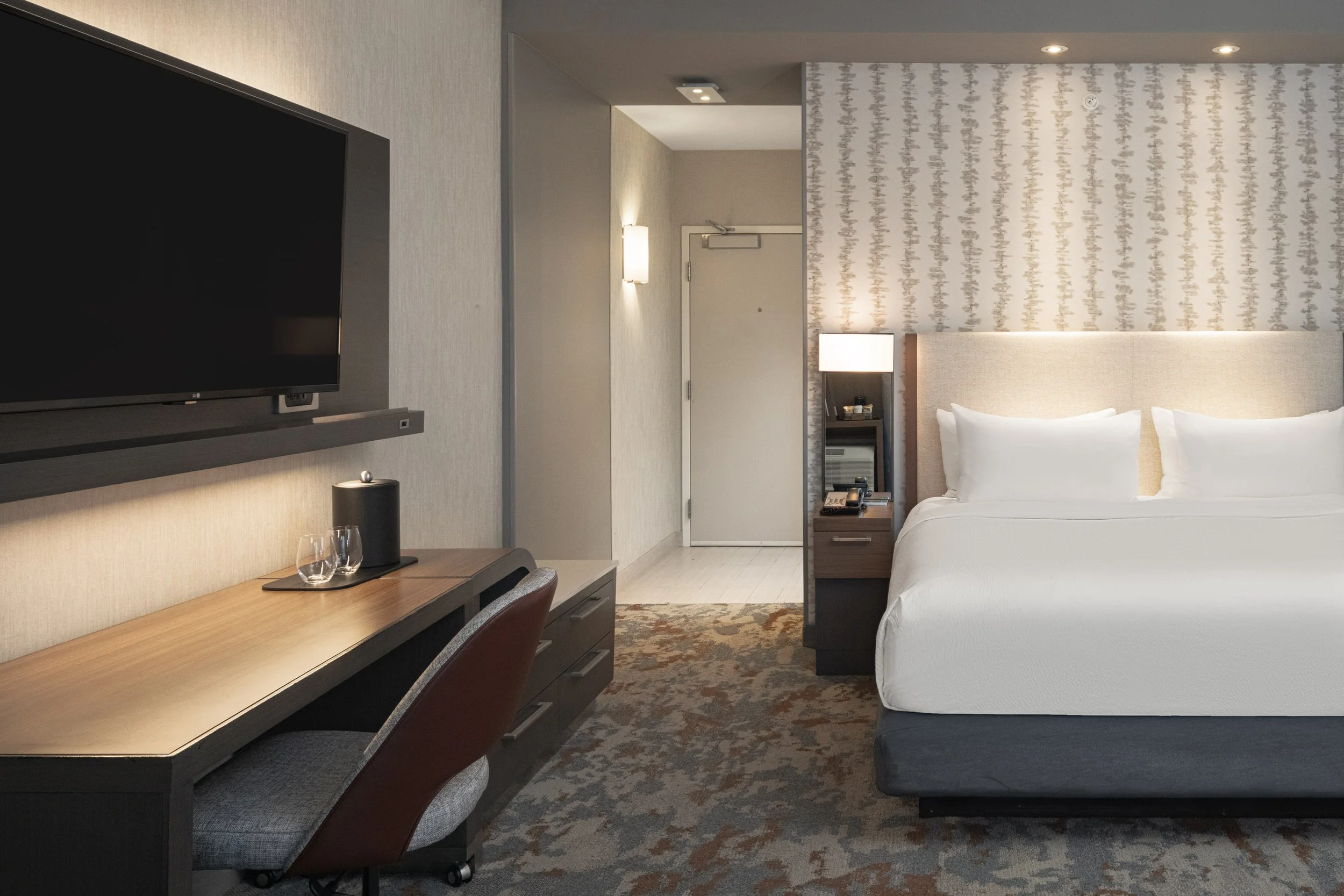
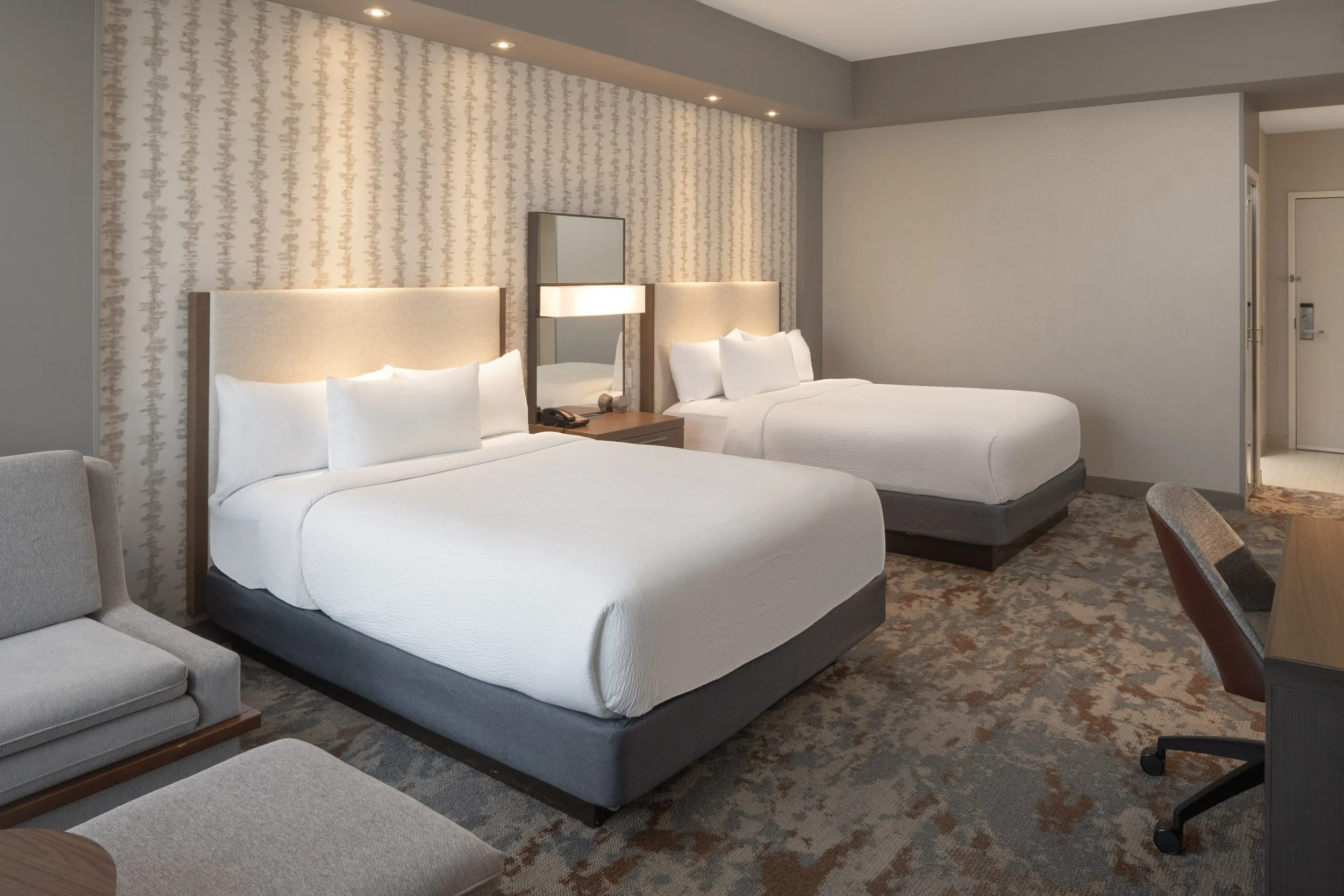
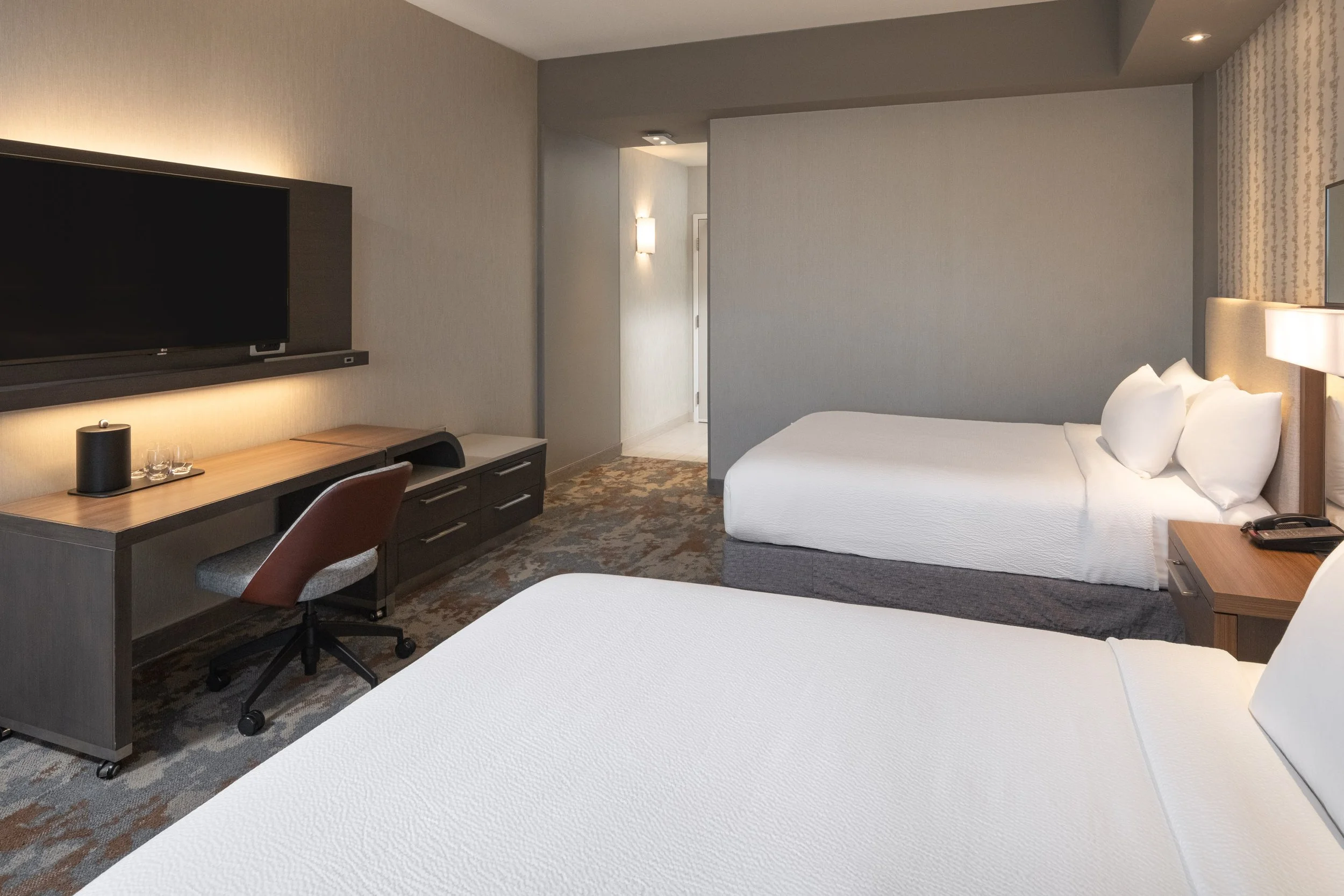
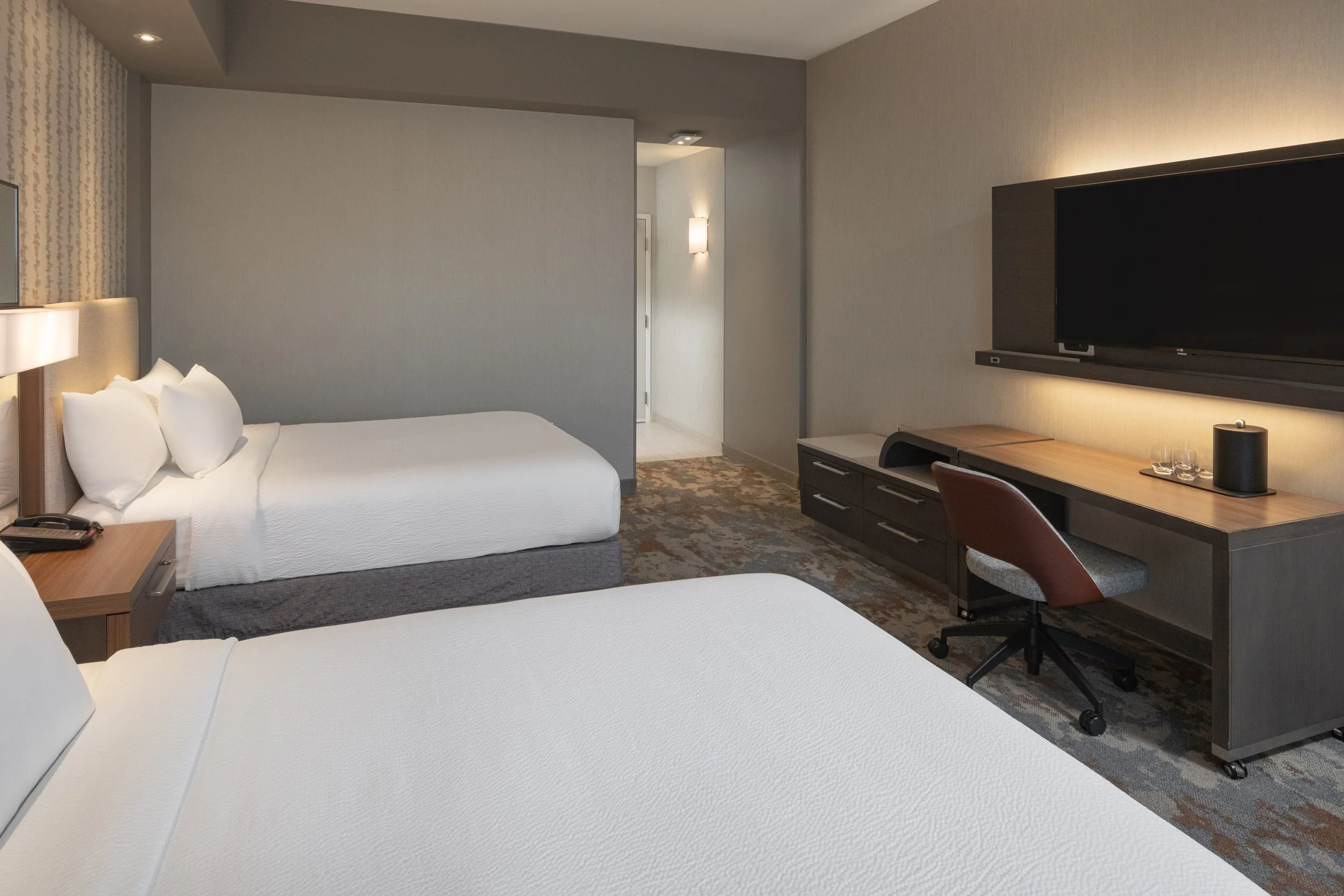
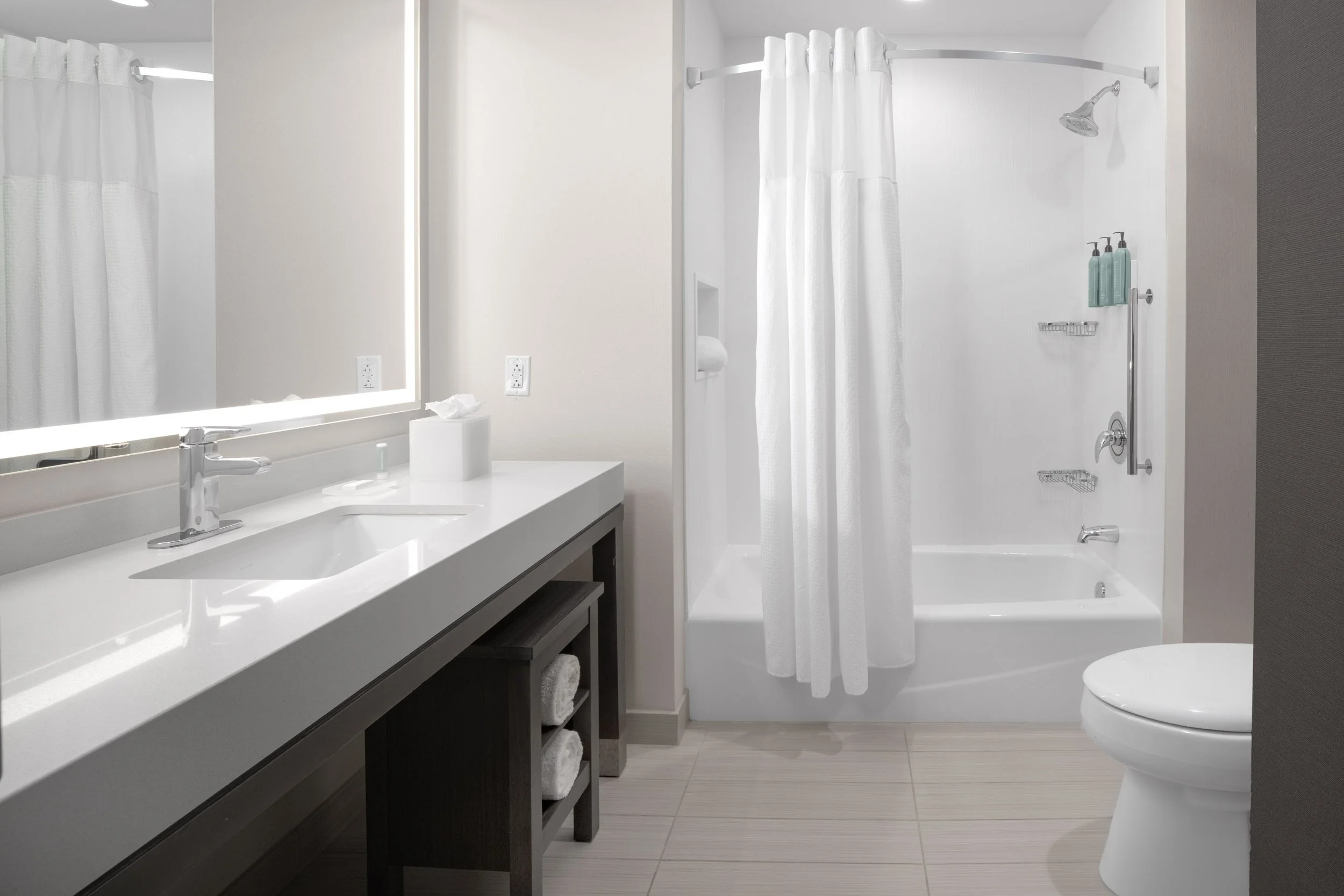
4921, 4922, 4923, 4924, 4925, 4926, 4927, 4928, 4929, 4930, 4933, 4934, 4938, 4942, 4943, 4944, 4945
Suites:
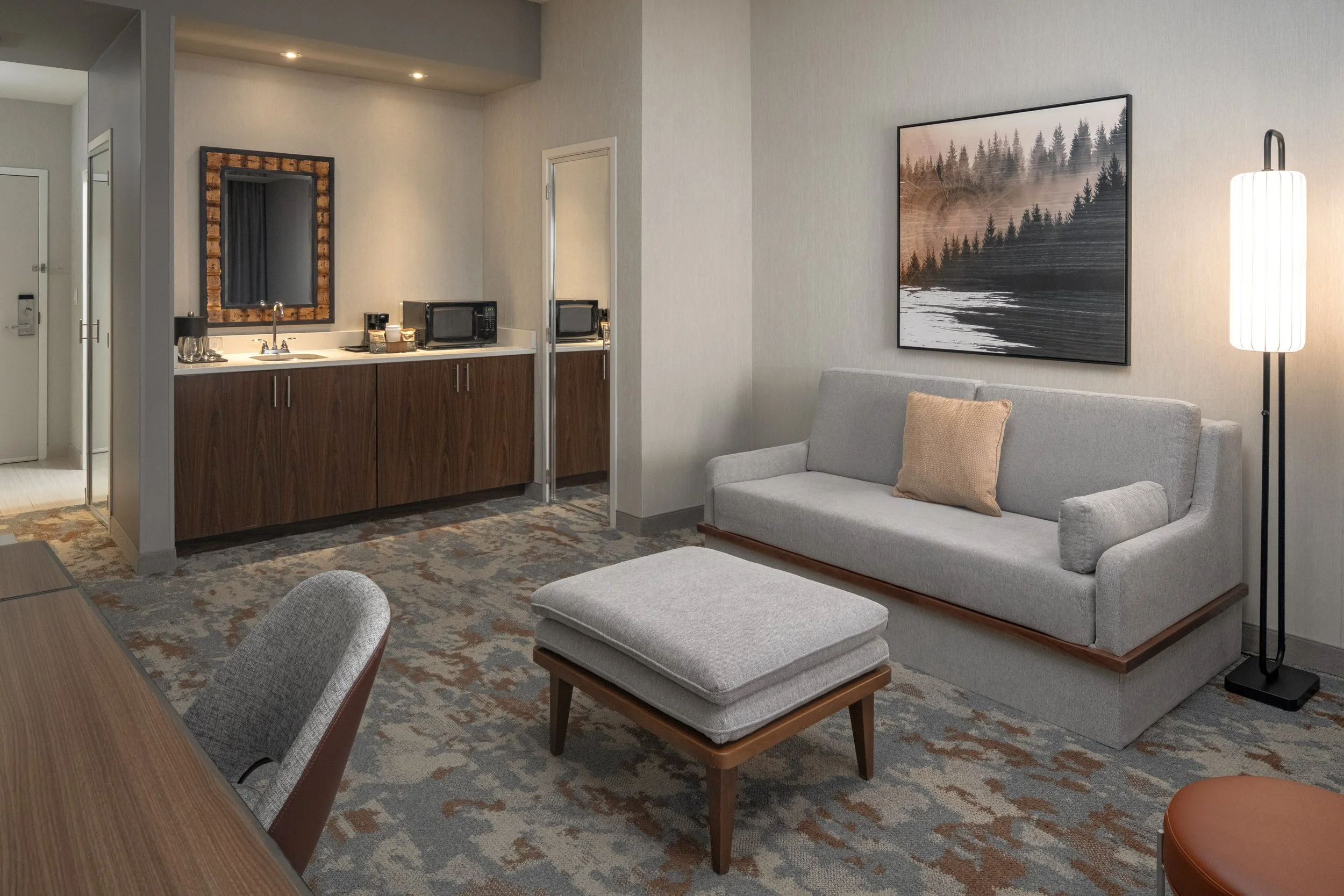
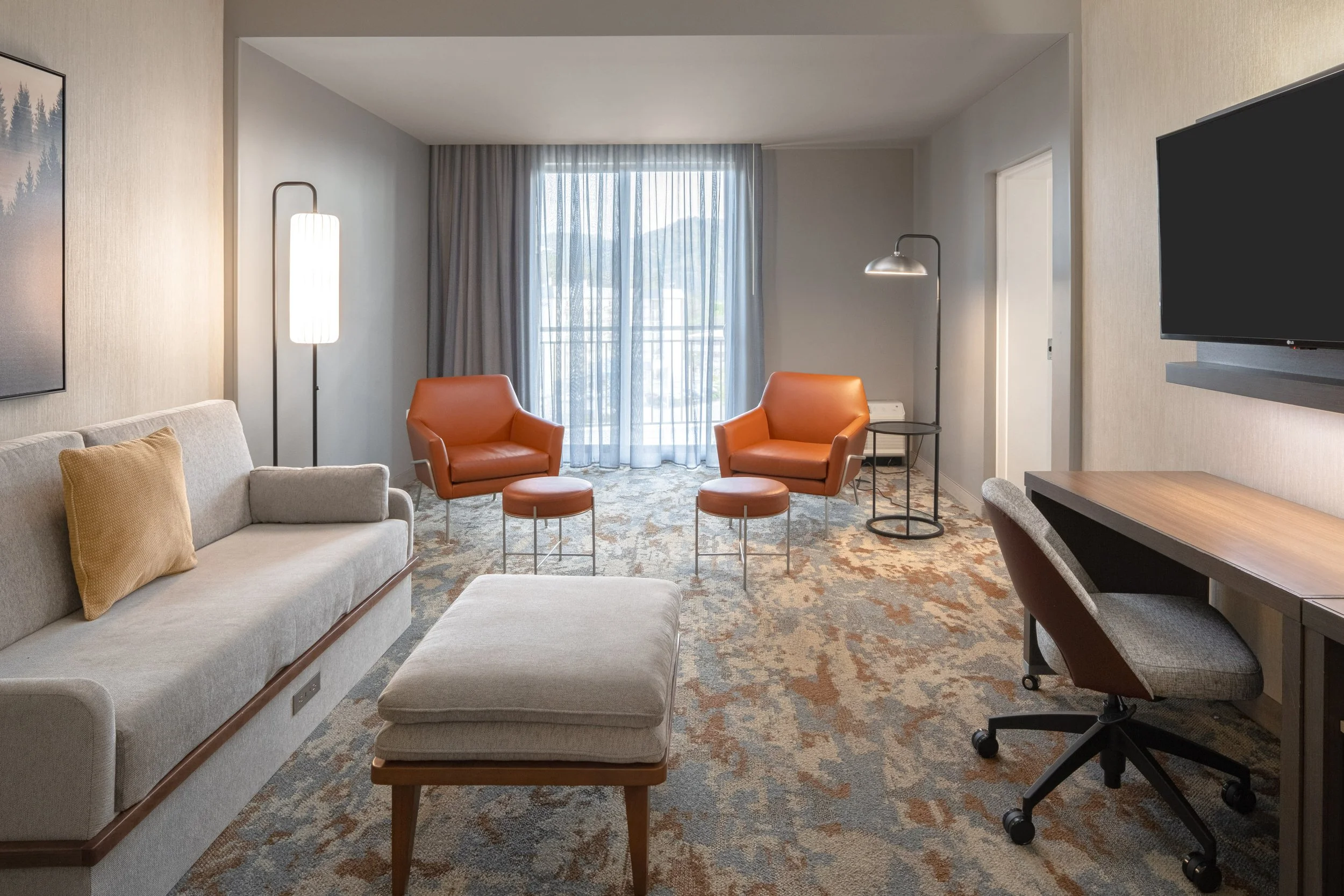
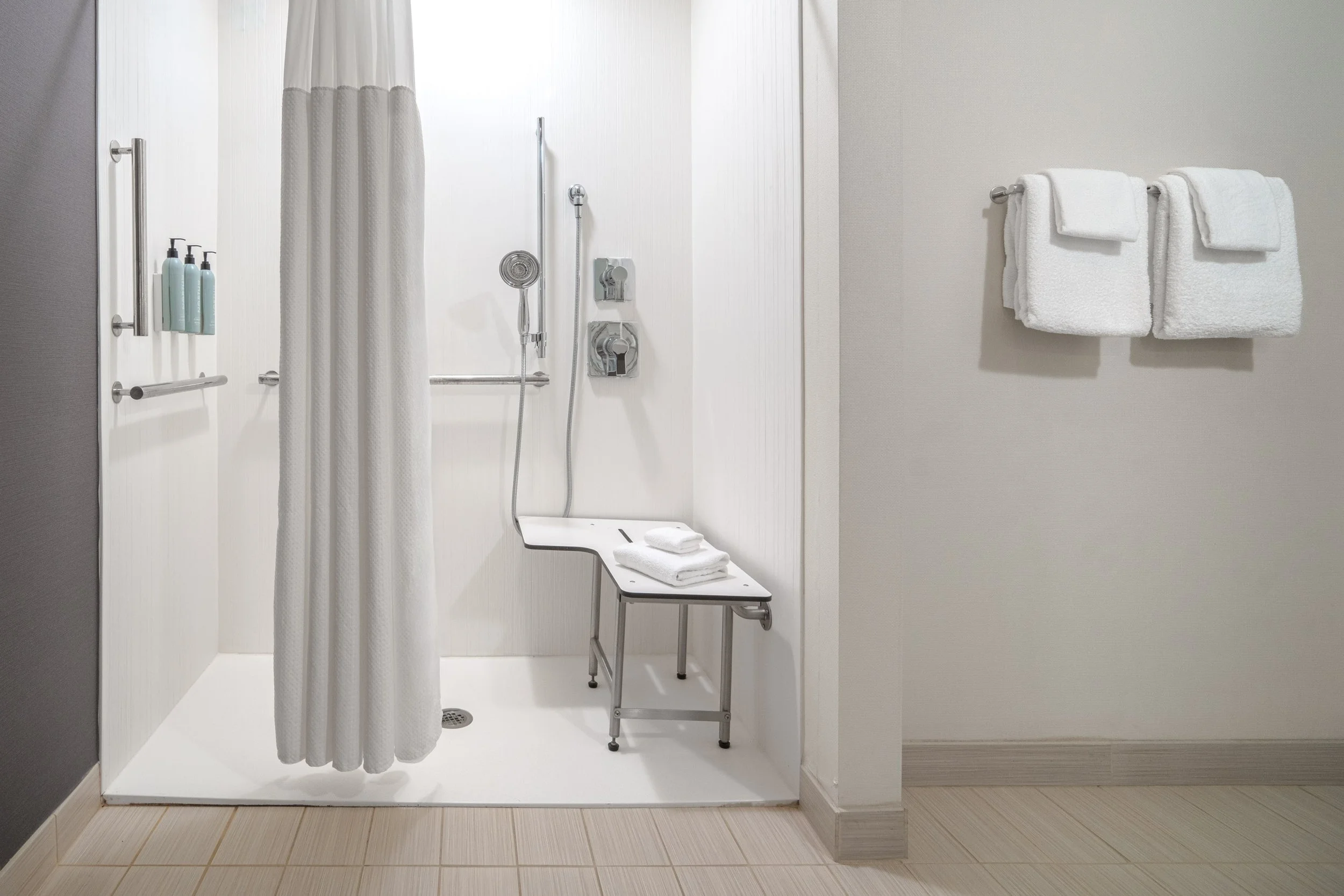
4931, 4932, 4935, 4936, 4937, 4939, 4940, 4941
Events & Meetings:
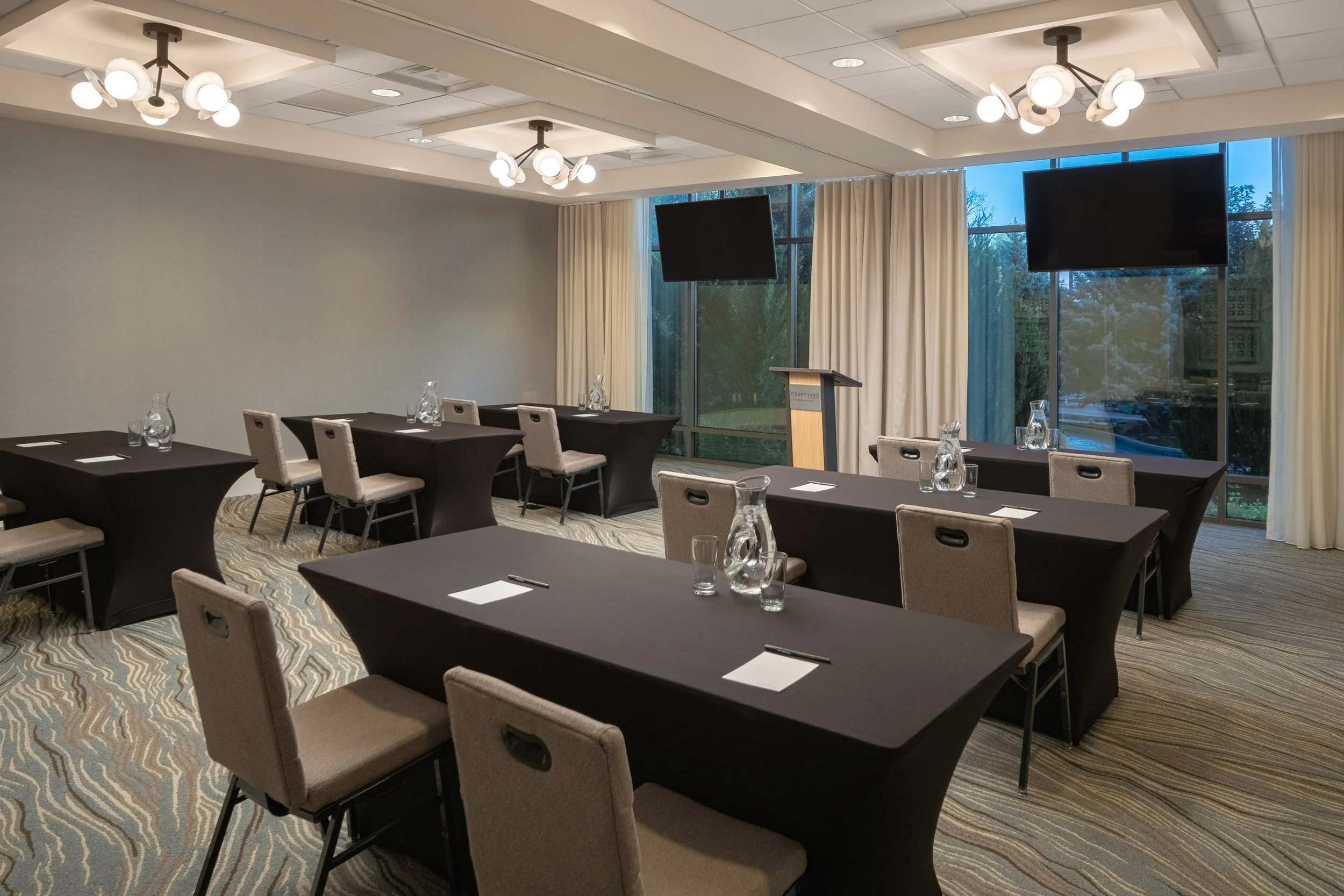
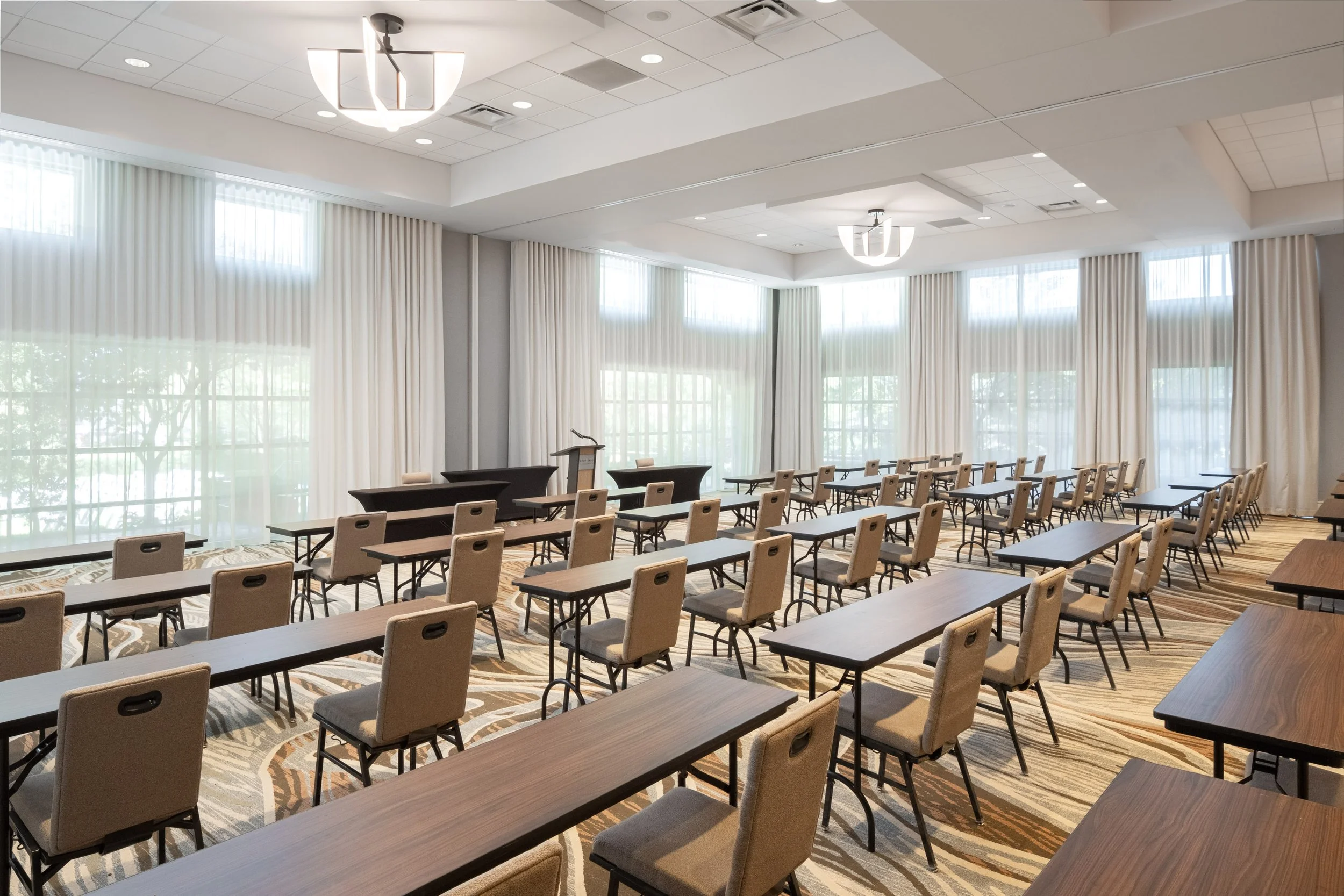
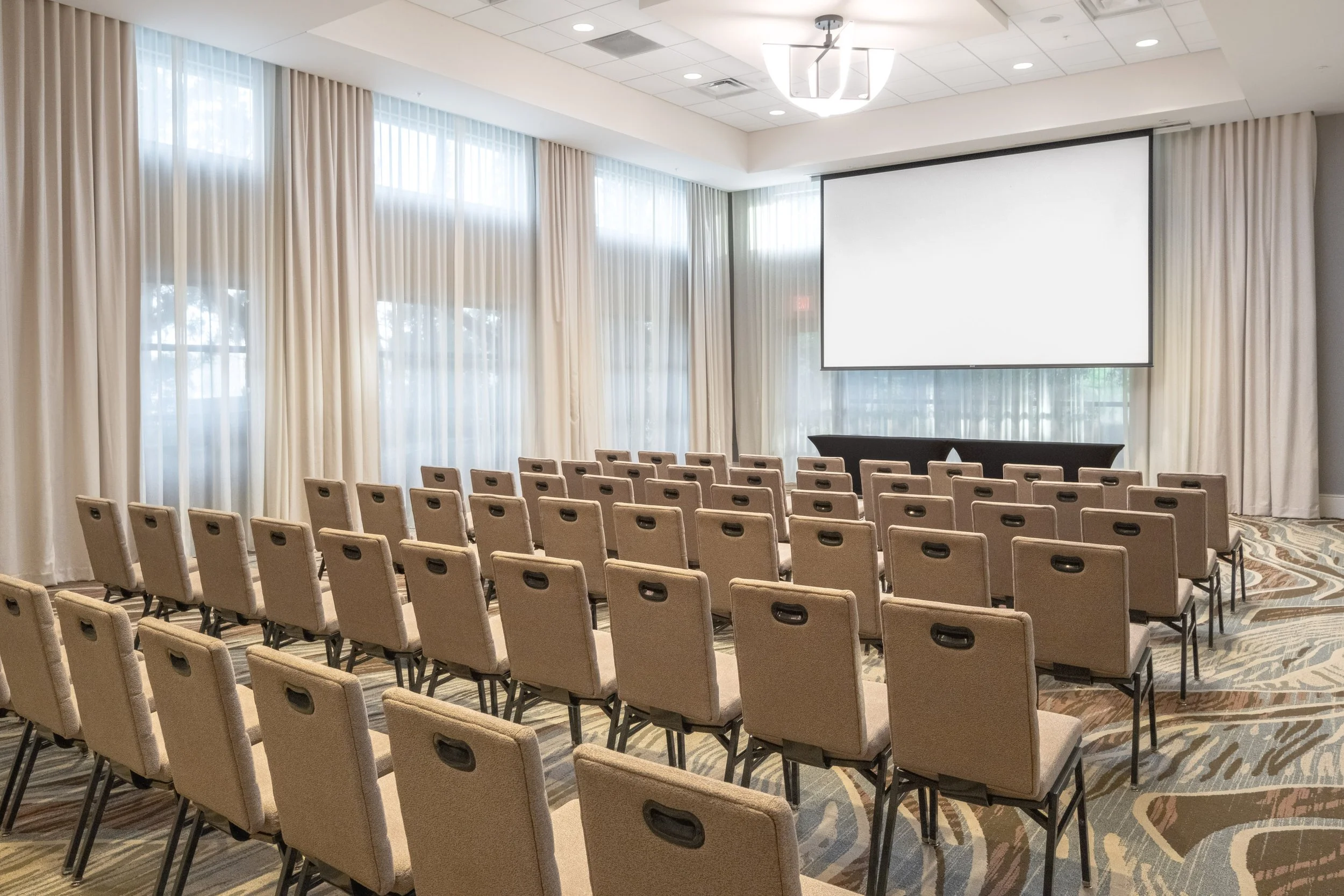
4912, 4947, 4948, 4949
Image Metadata
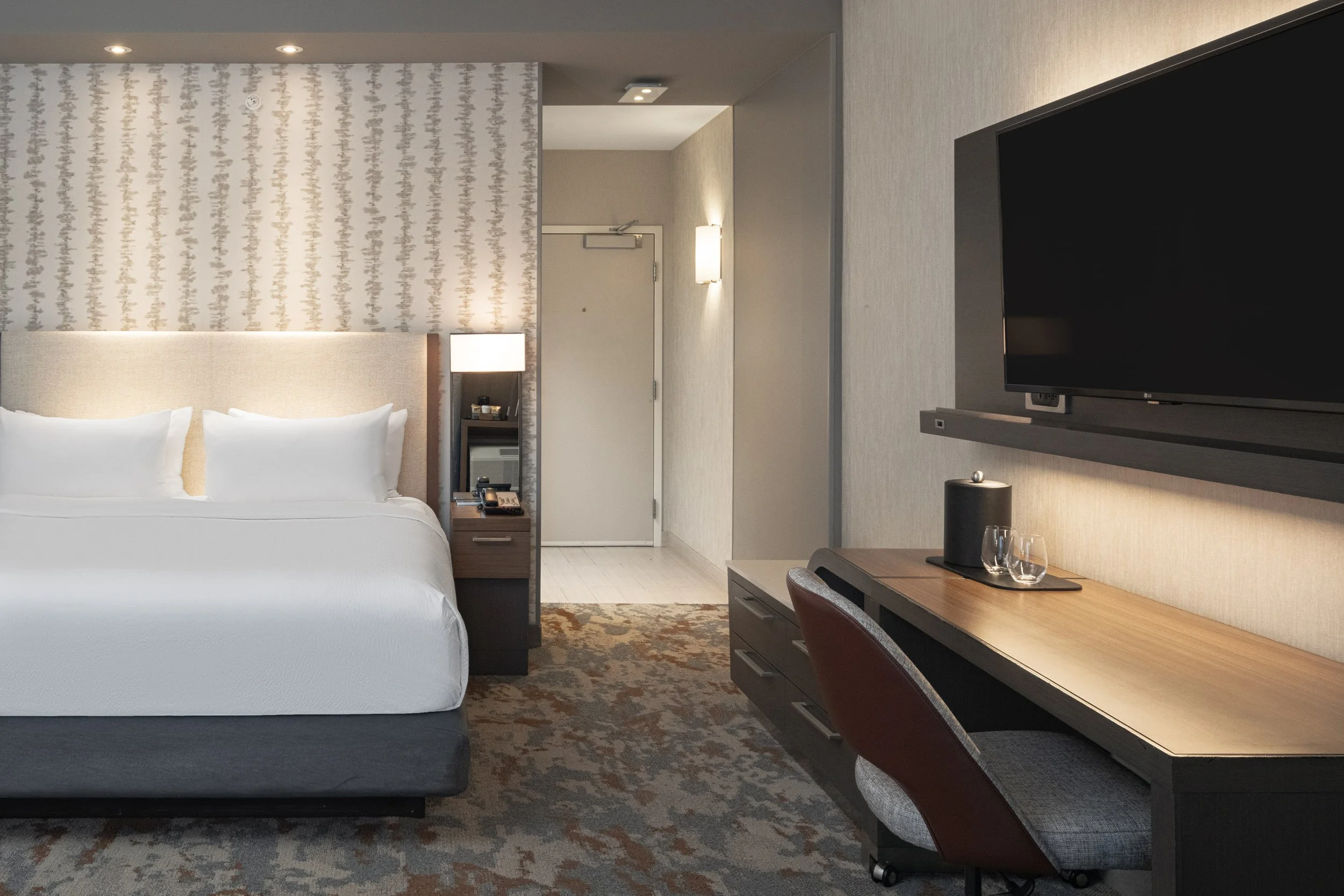
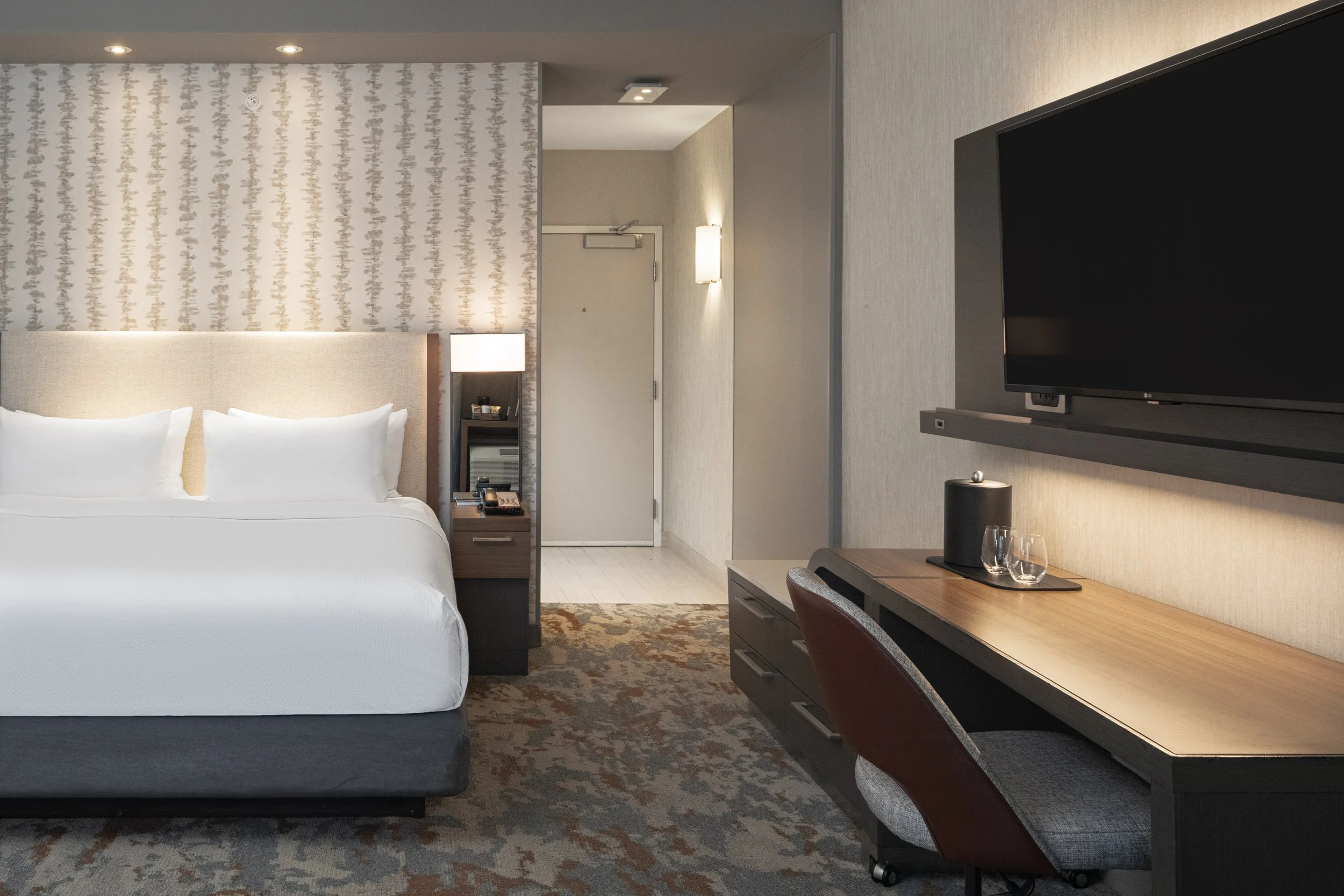
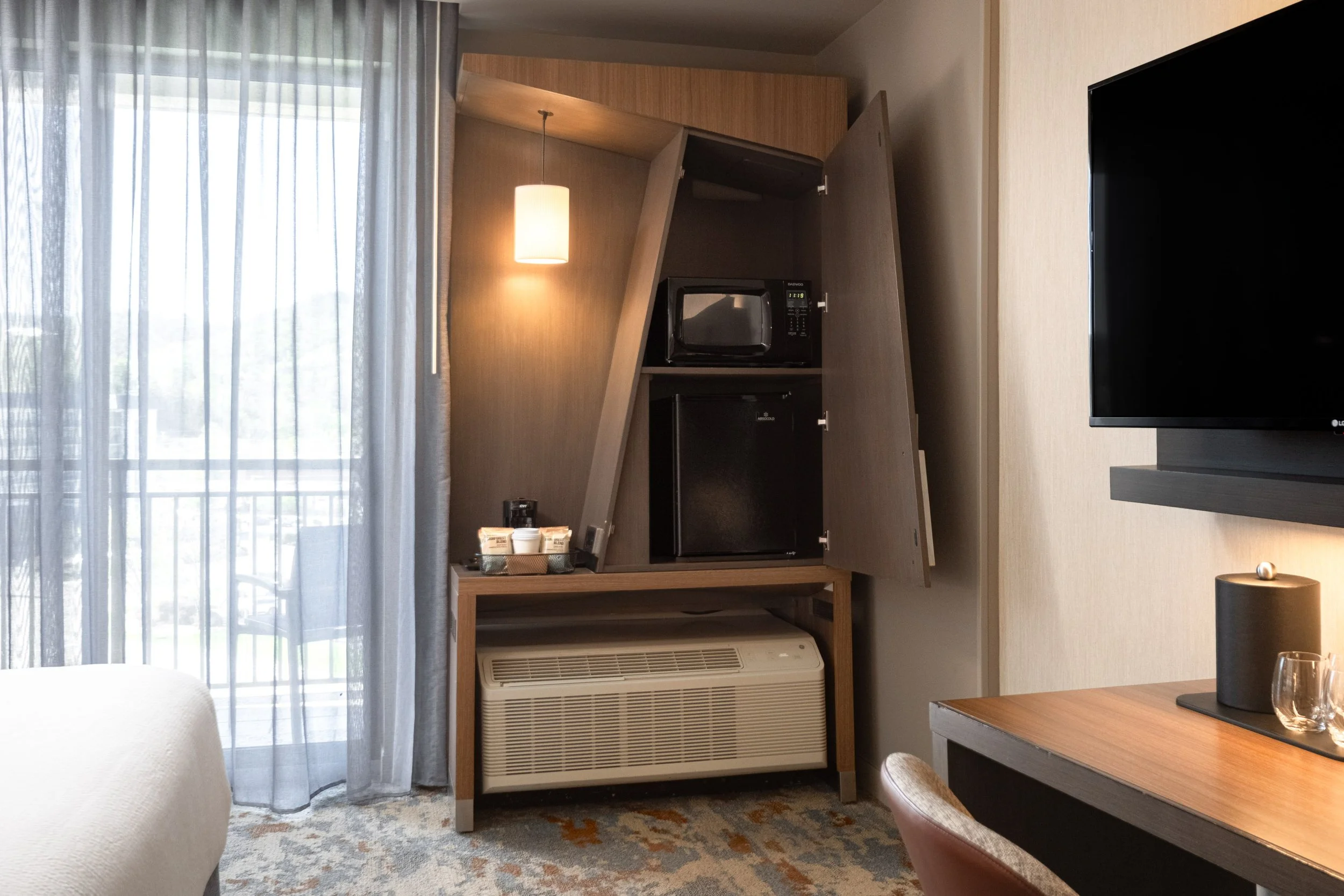
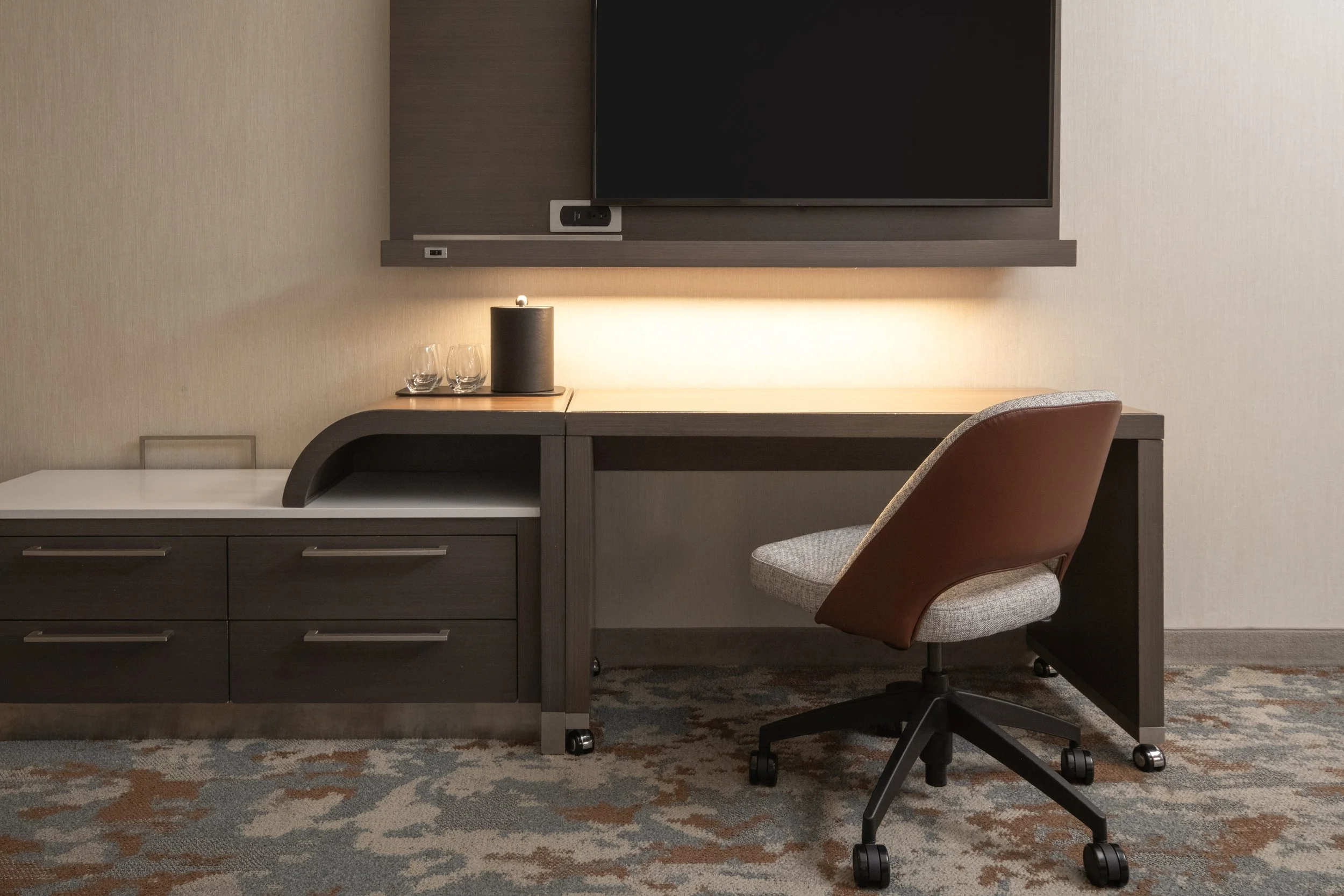
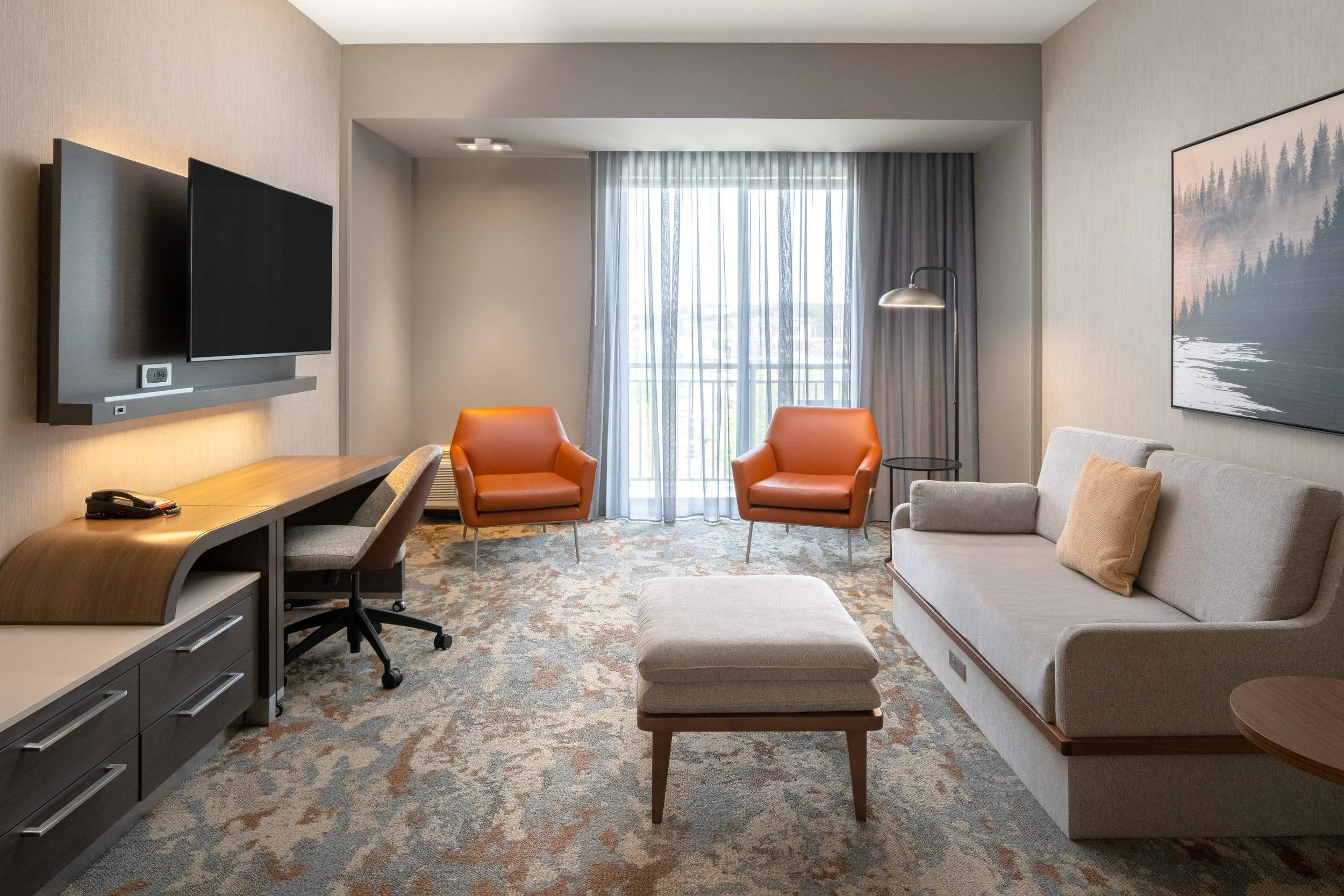
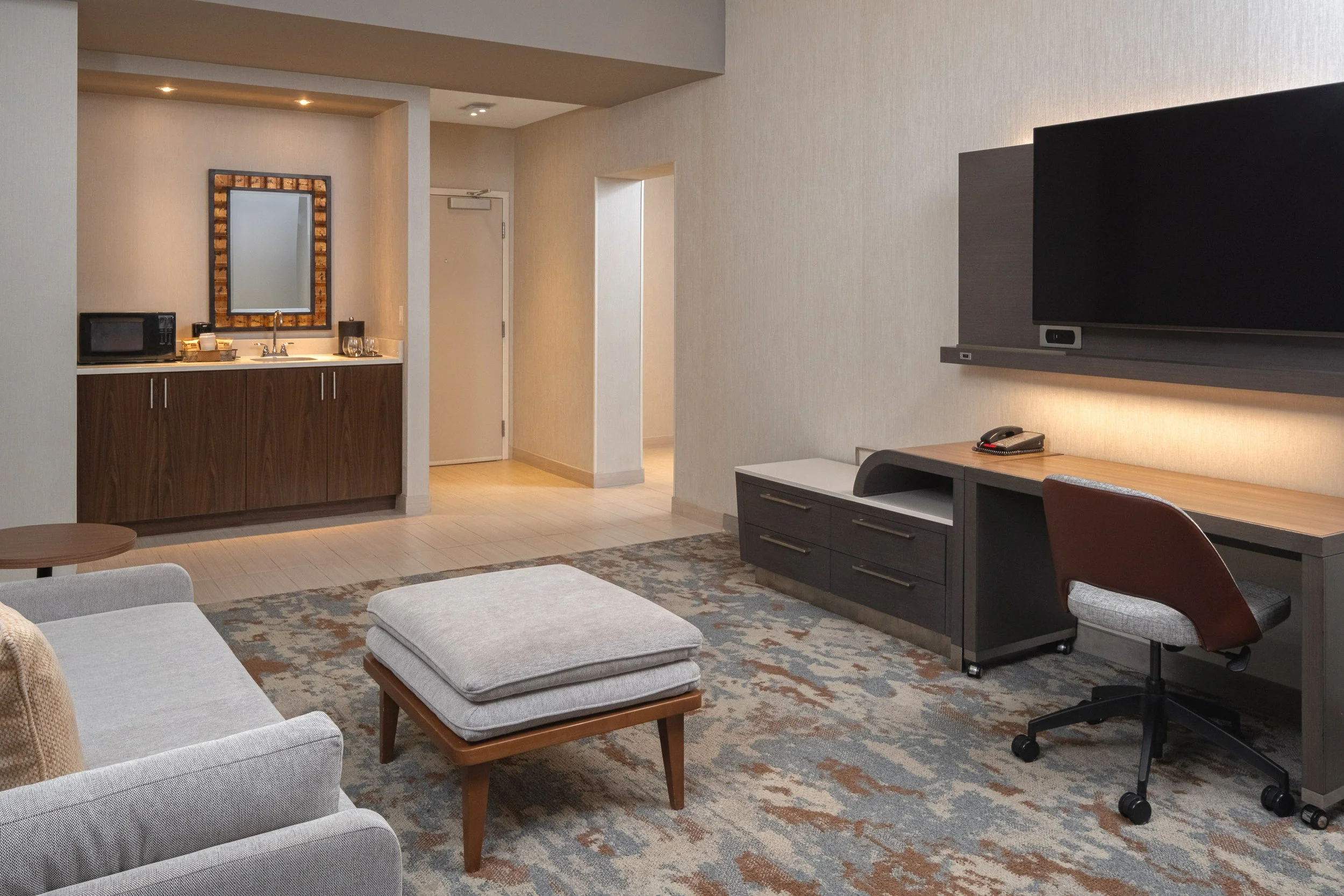
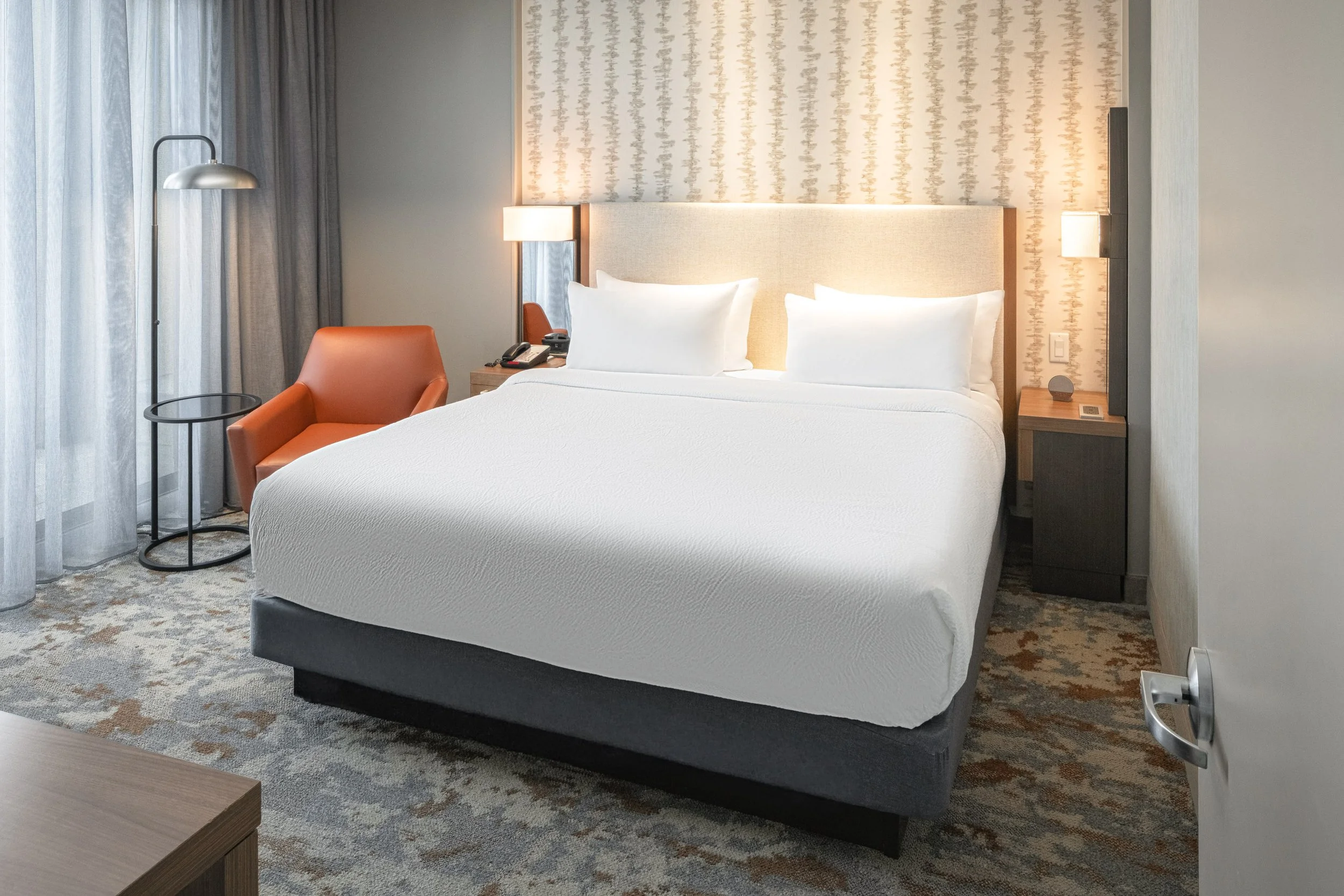
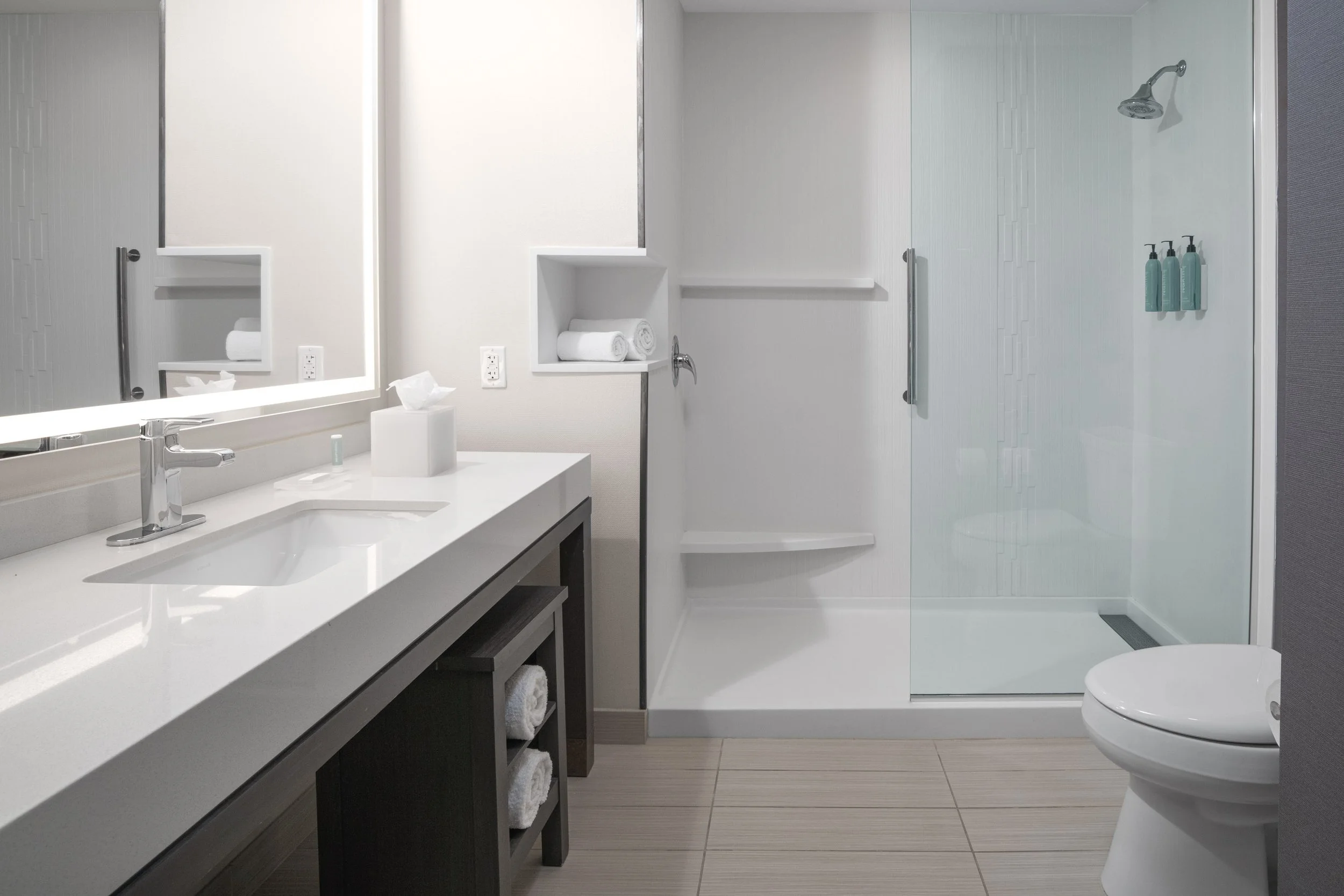
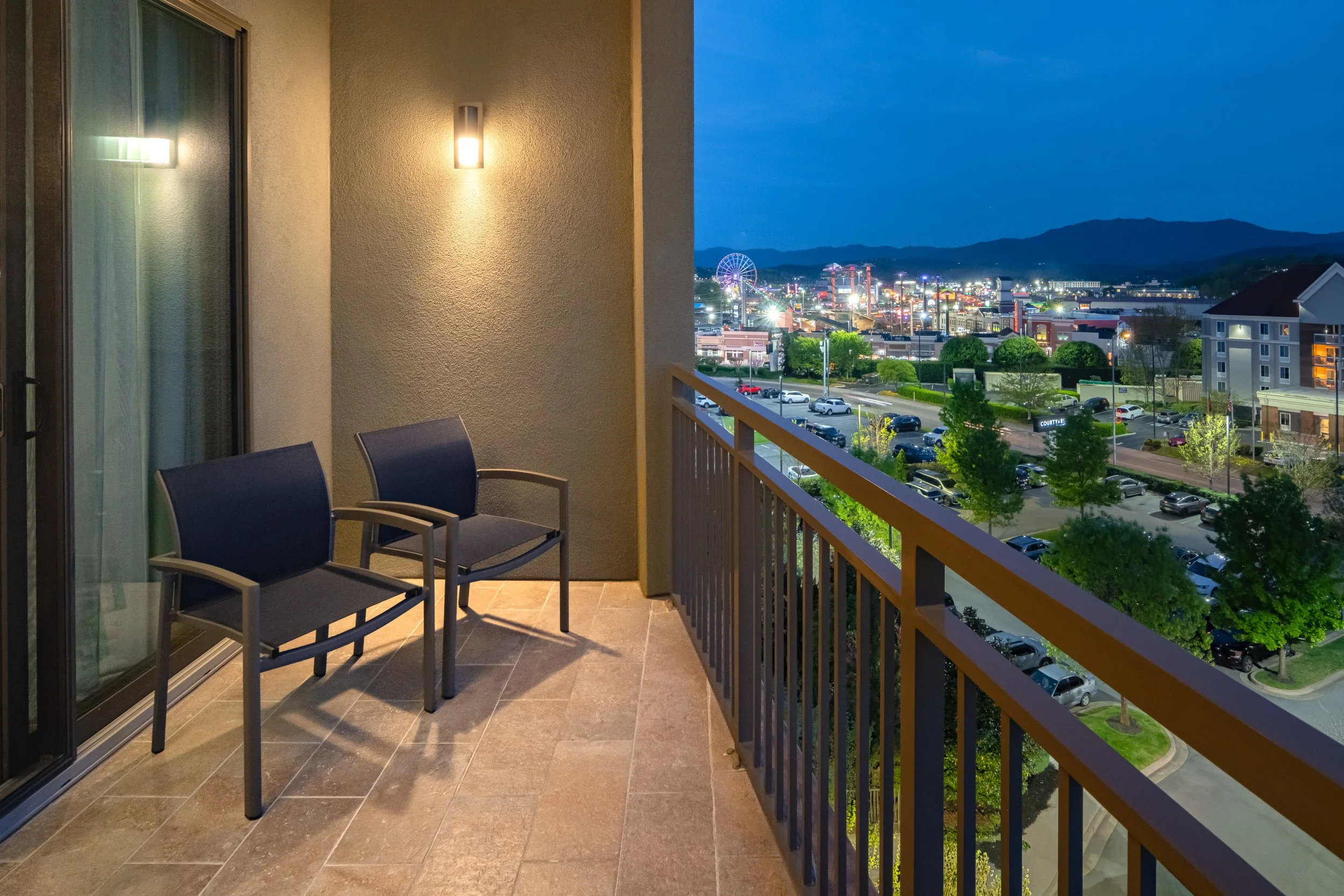
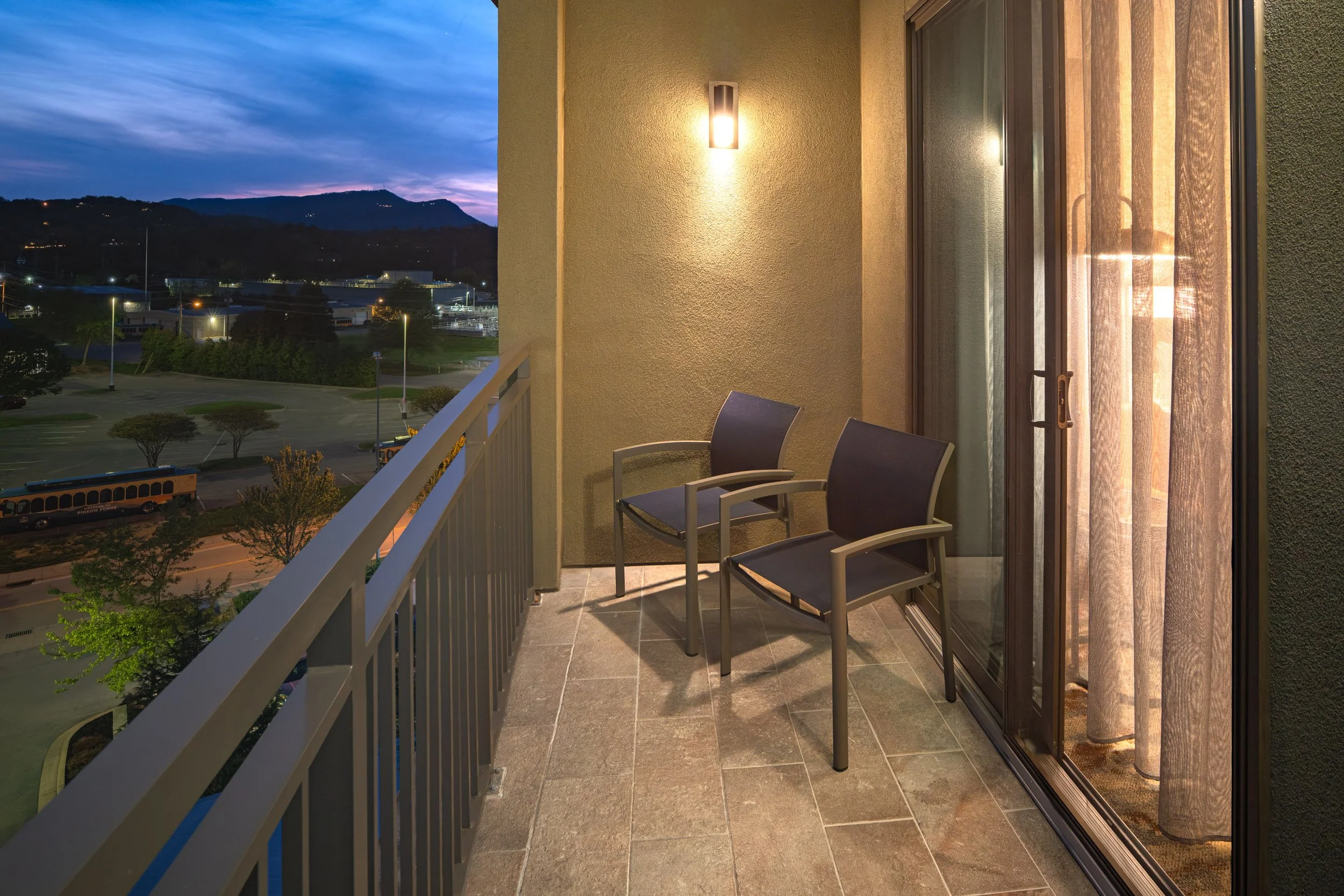
Use the image and ORIGINAL FILENAME to confirm the correct asset in MDAC. Then copy or reference the fields beneath that image.
For fields that say “Search in DAC for:”, search the recommended term and choose the closest available option.
Final Step
After all image details have been completed and saved, return to Marriott’s property-side upload instructions for final approval and submission.
If something does not appear to match, please reach out before submitting the assets.
We want these images to launch with clarity and momentum, and we’re happy to help your team get them across the finish line.